Adobe Premiere Pro Generative Media Tool: How Creators Can Generate B-Roll and Sound FX Directly in the Timeline
Table of Contents
- Inside Adobe's September 2026 Generative Media Release
- In-Timeline B-Roll Generation: How to Prompt Without Breaking Your Edit
- Generating Contextual Sound FX Directly on Audio Tracks
- Model Selection: Firefly vs Third-Party Engines
- Prompting for Visual Harmony: Lighting, Frame Rates, and Color
- Licensing, Commercial Rights, and Production Speed
- Conclusion
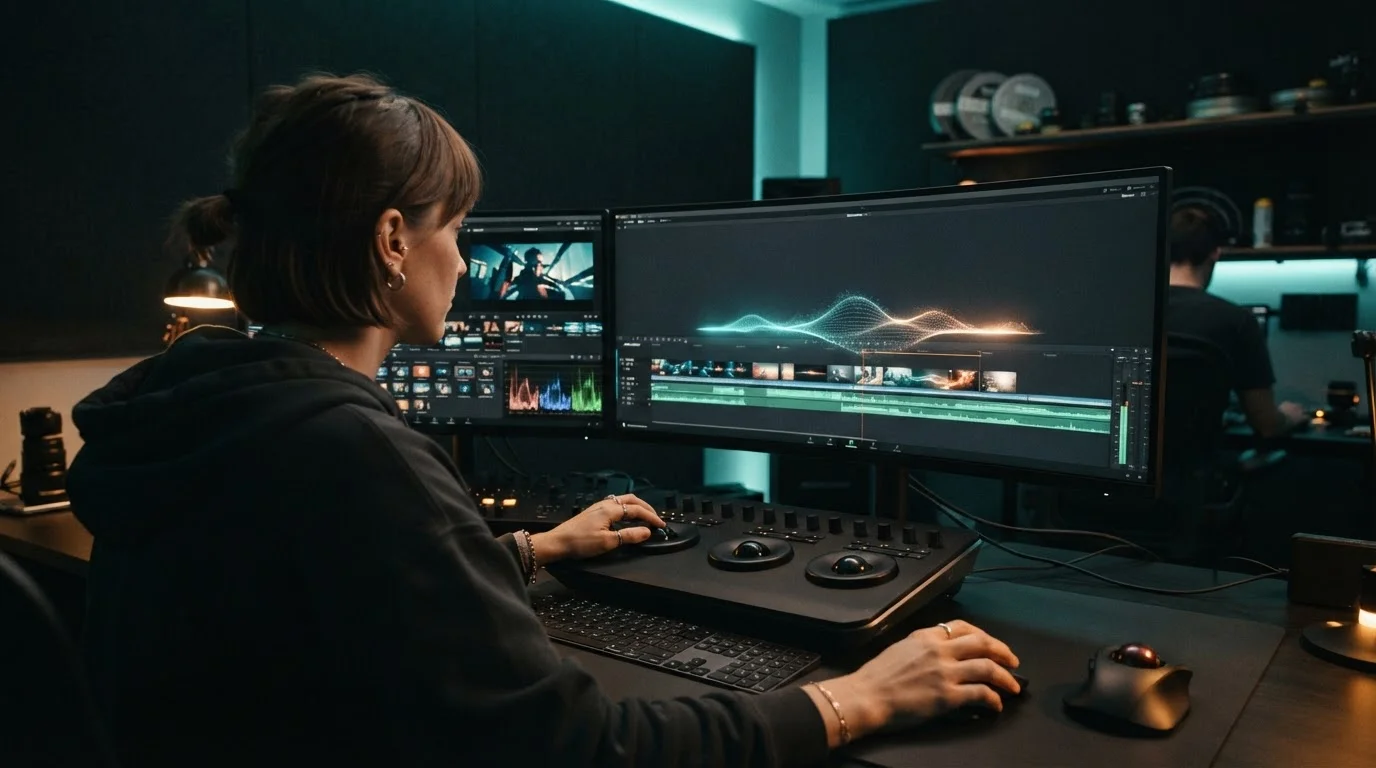
An AI Video Generator creates video clips or audio elements directly from text prompts, allowing editors to build missing project assets instantly. On September 8, 2026, Adobe launched the native Generative Media Tool in Premiere Pro and After Effects. This update lets creators generate contextual b-roll video clips and ambient sound effects directly on their editing timeline. Instead of stopping your edit to search stock sites, you can now build missing footage and audio right inside your project workspace.
In this guide, I will show you how to use Adobe Premiere Pro AI features, set up timeline b-roll generation, match lighting and color, and safely handle licensing for client deliverables.
Inside Adobe's September 2026 Generative Media Release
Adobe's release introduces the Generative Media Tool straight into the Premiere Pro and After Effects toolbars. The core goal of this release is simple: eliminating the friction of leaving your timeline to search for external stock media.
By embedding generative video and audio engines into the Sequence panel, you can mark an empty gap in your sequence, prompt for the exact shot you need, and generate matched clips in seconds. This changes the standard video production workflow by keeping you focused entirely on your creative momentum.
In-Timeline B-Roll Generation: How to Prompt Without Breaking Your Edit
When editing a project, coming across a blank spot in your timeline usually forces you to open a browser and hunt through stock libraries. With timeline b-roll generation, you simply set your in and out points on an empty track and activate the tool.
Here is how to do it step by step:
- Mark an In and Out point on your video track where b-roll is missing.
- Select the Generative Media panel inside Premiere Pro.
- Type a descriptive prompt covering camera angle, action, lighting, and mood.
- Preview three generated variants overlaid on your timeline.
- Click apply to insert your chosen clip directly into the sequence.
Because the tool respects your edit points, the generated clip automatically matches the duration of your gap. This speed boost keeps your momentum high and your timeline organized.
Generating Contextual Sound FX Directly on Audio Tracks
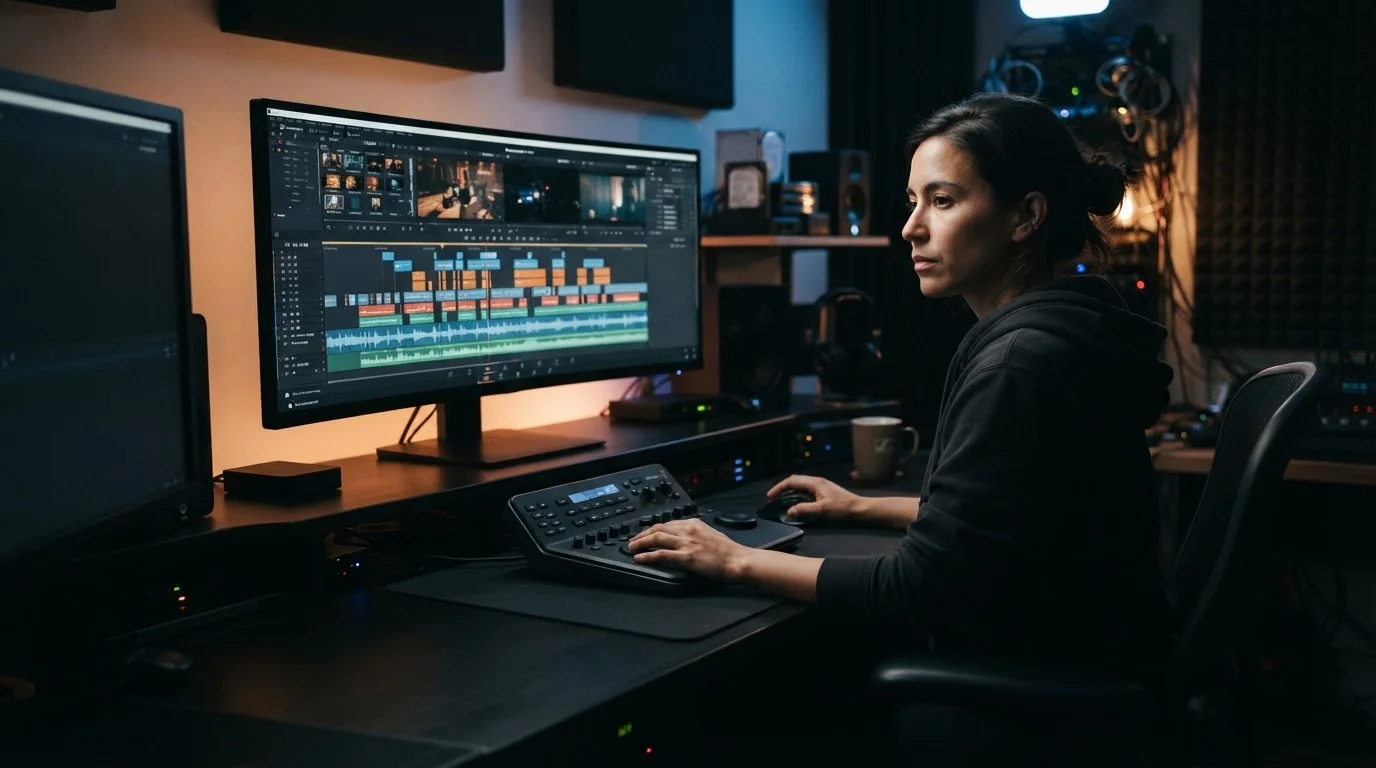
Great visual b-roll demands matching audio. The new update allows you to generate contextually matched AI sound effects and ambient audio fills right on your audio tracks.
When you generate a b-roll clip, Premiere can automatically evaluate the visual content and suggest matching ambient soundscapes. You can also manually prompt for specific foley effects like "footsteps on wet pavement" or "subtle room tone with distant city traffic."
- Select the empty space on the audio track under your b-roll clip.
- Choose Generate Audio Fill from the right-click menu.
- Select whether you need ambient background sound, foley, or crisp impact FX.
- Audition the generated audio waveforms and lock in the best match.
This style of AI media editing means you build layered, multi-track scenes without opening external sound libraries.
Model Selection: Firefly vs Third-Party Engines
One key feature of this release is model flexibility. You are not locked into a single generator. Adobe allows editors to toggle between Firefly Video Model and integrated third-party models directly from the prompt window.
| Generative Model | Primary Strengths | Best Use Case | Commercial Safety |
|---|---|---|---|
| Firefly Video Model | Precise lighting match, commercial indemnity | Enterprise, corporate, client deliverables | Fully Indemnified |
| Partner Engine A | Stylized motion, hyper-realistic physics | Creative ads, music videos, social teasers | Depends on license |
| Partner Engine B | Extended duration generation, cinematic motion | Background plates, long narrative scenes | Standard license |
If you want to understand how an AI Video Generator functions across different creative platforms, reviewing broader tool comparisons helps you pick the right engine for your project requirements.
Prompting for Visual Harmony: Lighting, Frame Rates, and Color
Generating a b-roll clip is easy, but making it blend with raw camera footage requires careful prompting. If your main shot is filmed on a prime lens with warm sunset light, a cold overhead-lit clip will stick out instantly.
Follow these prompt guidelines to maintain visual consistency:
- Specify camera specs: Include terms like "35mm lens, f/2.8 aperture, soft background bokeh" to match your A-camera depth of field.
- Match lighting direction: Describe light sources clearly, such as "warm golden hour side light from camera right."
- Control camera movement: Indicate motion like "slow subtle push-in" or "locked-off tripod shot" to prevent jarring camera cuts.
- Set frame rate targets: Specify "24fps cinematic shutter" to match your sequence settings.
For creators interested in optimizing asset workflows even further, reviewing structured Synthesia AI video generator workflows offers helpful techniques for combining prompt-driven visuals with structured timeline templates.
Licensing, Commercial Rights, and Production Speed
When delivering work for commercial clients, rights management comes first. Adobe built the Firefly-powered Generative Media Tool with commercial safety in mind. Content generated using Firefly is trained on licensed Adobe Stock and public domain content, giving creators IP clearance for commercial distribution.
If you choose third-party models within Premiere, always check their specific licensing terms before sending final edits to clients.
By keeping asset creation inside the NLE, editors cut asset retrieval time significantly. That means faster turnarounds, lower stock subscription costs, and more time spent refining your story.
Conclusion
The native Generative Media Tool in Premiere Pro changes how we handle post-production. By placing b-roll video generation and ambient sound effects creation directly into the sequence timeline, Adobe removes traditional edit-blocking friction. Whether you need a quick five-second transition shot or targeted audio fills, timeline AI tools keep your project moving forward without delay.
Ready to test the power of AI creation yourself? Head over to MagicEditAI and start your free trial today to create your first edited image or AI-generated video in just a few clicks!

 MagicEdit