Custom Motion Is the Next AI Video Frontier: Prompt Recipes for Character Movement, Camera Blocking, and Scene Continuity
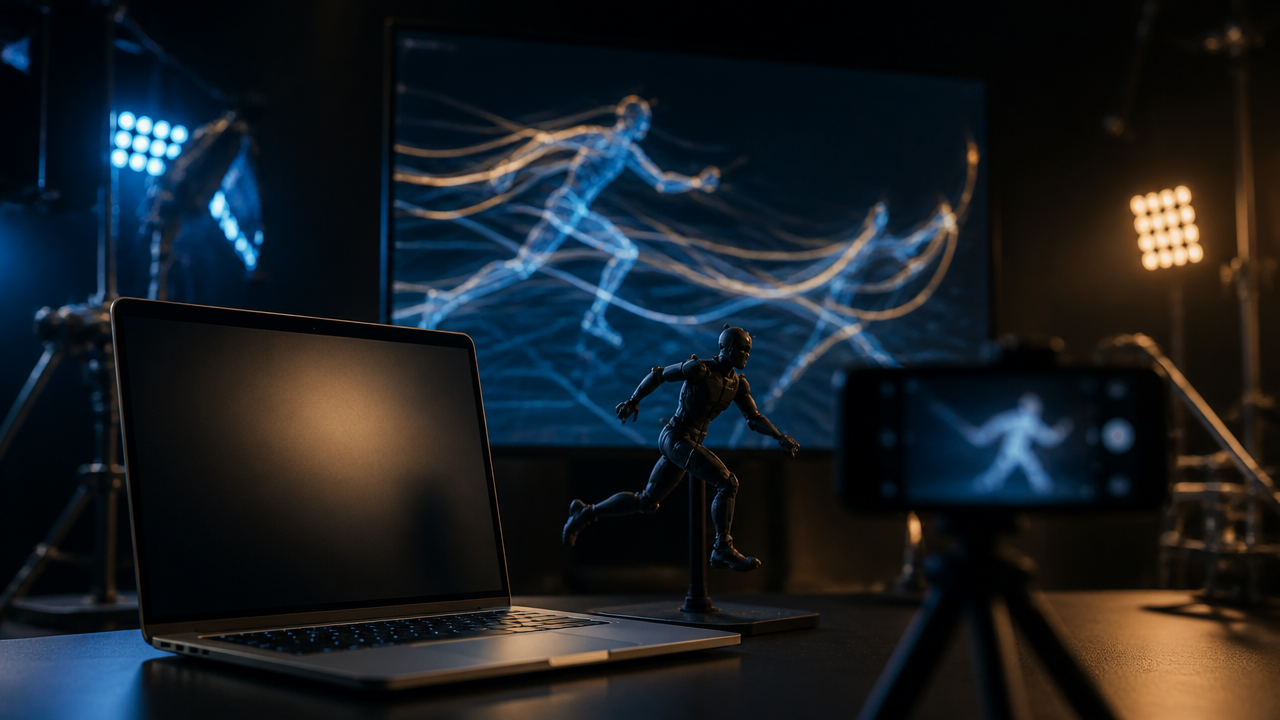
Creative Bloq’s July 22, 2026 report on Autodesk’s SIGGRAPH 2026 announcements put a bright spotlight on MotionMaker in Maya, especially its new “Bring Your Own Data” feature for training custom generative motion models from a studio’s own rigs, mocap, and hand-keyed animation. For anyone using an AI Video Generator, the signal is clear: the next leap isn’t just prettier frames. It’s repeatable motion, consistent performance, and faster creative control. (creativebloq.com)
Why Autodesk’s MotionMaker Update Matters Right Now
Autodesk’s MotionMaker update matters because it points to a future where motion becomes reusable creative IP. Instead of generating a random walk, a studio can train a custom motion model on its own movement style, then use that model to create new animation that still feels authored. Autodesk says the updated MotionMaker can train on a team’s own rig and motion, including mocap or hand-keyed work, which helps make stylized movement reusable across animation, VFX, and games. (blogs.autodesk.com)
For small studios and creators, that’s huge. Most of us don’t have a giant mocap stage, a full animation department, or weeks to polish every background character. But we can still borrow the logic behind “Bring Your Own Data” by building a disciplined AI video workflow around references, reusable prompt language, and shot libraries.
In MagicEditAI terms, this means you’re not prompting from scratch every time. You’re creating a movement system.
From “Bring Your Own Data” to a Creator-Friendly AI Video Workflow
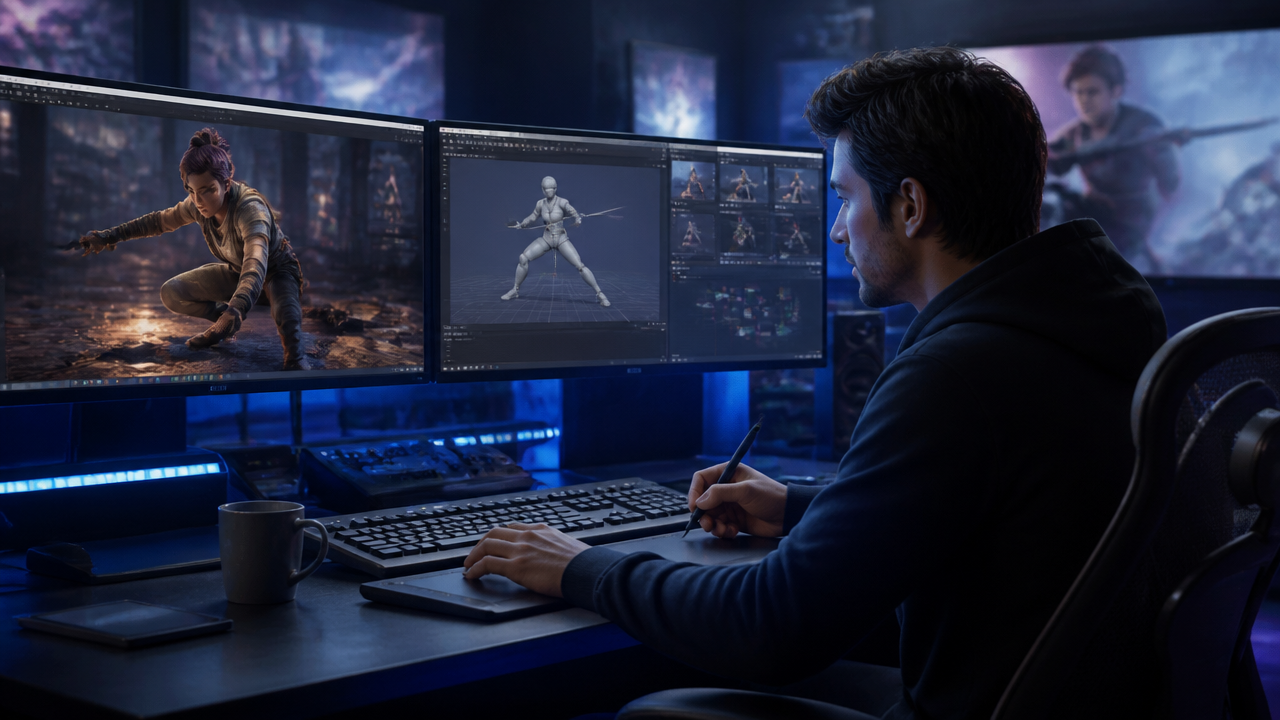
If Autodesk’s version is “train the model on your animation data,” the creator version is “feed the workflow with consistent motion references.”
Here’s how I’d translate that into a MagicEditAI-style creator production pipeline:
| MotionMaker Concept | Creator-Friendly Equivalent | Practical Example |
|---|---|---|
| Own rigs | Consistent character reference images | Same outfit, face, body shape, and color palette |
| Mocap dataset | Reference clips | A 5-second walk, turn, gesture, or dance move |
| Hand-keyed animation | Written motion direction | “Right hand lifts slowly, wrist turns outward, fingers relax” |
| Trained style model | Repeatable prompt library | Saved prompts for walks, product reveals, gestures, and camera moves |
| Animation reuse | Character action library | “Hero walk,” “confident reveal,” “nervous hand motion” |
This is where AI animation tools become more than one-off generators. With MagicEditAI, you can generate, edit, add voice, music, and refine visuals in one place, which makes it easier to keep motion, style, sound, and edits aligned.
If you’re still building your core process, I’d start with this guide to how an AI Video Generator fits into real creator workflows, then layer the motion recipes below on top.
The Motion Prompt Formula I Use for Better AI Video Results
The best character animation prompts don’t just say what happens. They direct performance.
Use this structure:
Subject + action + speed + emotion + camera path + environment + continuity constraints
Here’s the expanded version:
| Prompt Element | What to Specify | Example |
|---|---|---|
| Subject | Who or what is moving | “A young fashion creator in a silver jacket” |
| Action | The exact movement | “walks forward, pauses, turns left” |
| Speed | Timing and energy | “slow, deliberate, 4-second movement” |
| Emotion | Performance style | “confident but calm” |
| Camera path | How the shot is blocked | “low-angle dolly backward” |
| Environment | Scene context | “neon studio with glossy floor” |
| Continuity | What must not change | “same face, outfit, lighting, and body proportions” |
That final line is where motion consistency often improves. Don’t assume the model knows what to preserve. Say it clearly.
Prompt Recipes for Character Movement and Camera Blocking
Use these as starting points in MagicEditAI or your preferred AI Video Generator, then adjust the style, length, and aspect ratio.
Walking Cycle Prompt
Create a 5-second video of the same character walking forward with a relaxed, natural stride. The subject keeps shoulders level, arms swinging subtly, head facing forward, and feet contacting the floor cleanly. Pace is medium-slow and confident. Camera tracks backward at chest height. Maintain the same face, outfit, body proportions, lighting, and background throughout the shot.
Product Reveal Prompt
Create a cinematic product reveal of a matte black wireless speaker rotating slowly on a reflective table. The camera pushes in from a 45-degree angle while soft studio light moves across the surface. Motion is smooth and premium, with no sudden jumps. Keep the product shape, logo placement, material texture, and background consistent from first frame to last.
Dance Motion Prompt
Generate a 6-second dance shot of the same performer doing a controlled side-step sequence: step right, shoulder roll, step left, small arm sweep, then hold pose. Movement is rhythmic but not exaggerated. Camera stays locked in a medium-wide shot. Preserve limb coherence, face identity, outfit details, and floor contact.
Hand Gesture Prompt
Create a close-up video of a presenter explaining a concept with natural hand gestures. The right hand rises to chest level, fingers open gently, then the palm turns upward. The left hand remains relaxed. Motion is slow, conversational, and believable. Keep hands anatomically correct with five fingers, stable wrists, and no flickering jewelry.
Cinematic Camera Blocking Prompt
Create a dramatic 7-second scene of a character entering a dim studio. Camera begins behind the character, slowly arcs to the right, then settles into a three-quarter front view. The character walks two steps, stops under a soft overhead light, and looks toward camera. Maintain scene continuity, stable lighting, matching outfit, and consistent facial features.
For image-led creator workflows, the same motion thinking applies. If you’re turning still visuals into polished clips, this AI image-to-video workflow guide is a useful companion.
Before and After: Turning Vague Prompts Into Motion Direction
| Use Case | Vague Prompt | Professional Motion-Direction Prompt |
|---|---|---|
| Walk | “Make the character walk.” | “The character walks forward for 4 seconds with a relaxed stride, subtle arm swing, steady head position, and clean foot contact. Camera tracks backward smoothly.” |
| Product | “Show the product.” | “The product rotates 20 degrees clockwise while the camera pushes in slowly. Keep reflections stable and preserve exact product shape.” |
| Dance | “Make her dance.” | “Performer completes two side steps, a shoulder roll, and a controlled arm sweep on beat. Keep full body visible and feet grounded.” |
| Gesture | “Person talks with hands.” | “Presenter raises right hand, opens palm, then lowers it naturally while maintaining eye contact and calm expression.” |
The difference is direction. You’re telling the AI what to animate, how fast to animate it, and what to protect.
Keeping Characters Consistent Across Multiple AI-Generated Shots
Character continuity is where many AI clips fall apart. My rule is simple: treat every shot like part of the same production, not a fresh experiment.
Use this mini system:
- Create a master character description. Include age range, hairstyle, outfit, colors, accessories, body type, and visual style.
- Use reference images whenever possible. Image-to-video often gives you stronger identity control than pure text-to-video.
- Repeat continuity constraints. Add “same face, same outfit, same hairstyle, same proportions” to every shot.
- Build an action library. Save approved prompts for walks, turns, gestures, reveals, and reactions.
- Edit for continuity. Trim around weak frames, use cutaways, add music, and keep shot duration tight.
This is the practical version of generative motion as a reusable system. You’re not training a studio model, but you are training your own process.
Text-to-Video, Image-to-Video, or Video-to-Video: Which Should You Use?
| Workflow Type | Best For | Motion Control Level | My Recommendation |
|---|---|---|---|
| Text-to-video | New concepts, mood tests, quick B-roll | Medium | Use when speed matters more than exact identity |
| Image-to-video | Character consistency, product shots, stylized scenes | High | Use when the subject must stay recognizable |
| Video-to-video | Motion transfer, restyling, reference-based action | Highest | Use when movement accuracy matters most |
If I’m creating a branded character sequence, I start with image-to-video. If I’m matching a dance, gesture, or camera move, I use video-to-video with a reference clip. If I’m brainstorming, text-to-video is perfect because it’s fast and low-friction.
Motion Refinement Checklist Before You Export
Before I call a shot finished, I run this checklist:
- Timing: Does the action start and end cleanly, or does it feel cut off?
- Physics: Do feet touch the ground, objects keep weight, and hair or fabric move believably?
- Limb coherence: Are hands, elbows, knees, and fingers stable across frames?
- Camera stability: Is the camera path intentional, or is it drifting?
- Scene continuity: Do the face, outfit, product shape, and lighting stay consistent?
- Editability: Can this shot be trimmed, looped, slowed, or paired with another clip?
- Sound planning: Will the movement support voiceover, music, or sound effects?
This is the difference between a cool AI clip and a usable asset in a creator production pipeline.
Conclusion
Autodesk’s MotionMaker update shows where professional animation is heading: reusable motion systems, creator-owned style, and AI that speeds up the repetitive parts without removing creative direction. For creators using MagicEditAI, the takeaway is practical. You don’t need a trained custom motion model to start working like you have one.
Build reference clips. Save your best camera movement prompts. Keep a character action library. Write motion prompts with subject, action, speed, emotion, camera path, environment, and continuity constraints. That’s how you turn an AI Video Generator from a one-click novelty into a serious production tool.
Ready to put these prompt recipes into motion? Try the free trial on MagicEditAI to create your first edited image or AI-generated video.

 MagicEdit