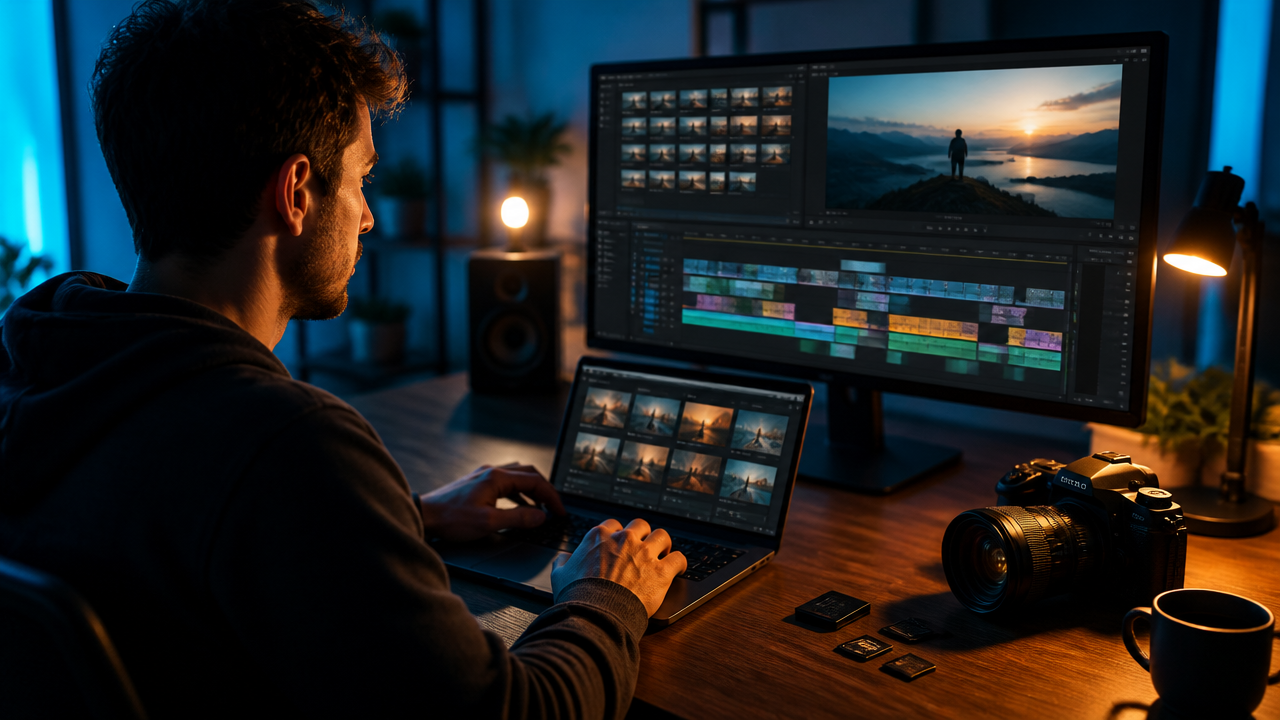
From Raw Clips to Finished Stories: Prompt Workflows for AI Video Editing Copilots
Table of Contents
- Why Rodeo Signals a New Creator Workflow
- AI Video Generation vs. AI Video Assembly
- Prompt Templates for Finding the Right Clips Fast
- A Step-by-Step Workflow for Shorts, Reels, TikToks, and YouTube Previews
- Creator Examples: From Vlogs to Digital Art
- Quality Control Before You Publish
- Conclusion
TwelveLabs announced Rodeo on June 1, 2026, describing it as an AI-powered creative copilot that helps creators find, edit, and assemble footage with natural language. It’s powered by the company’s video-understanding models Marengo 3.0 and Pegasus 1.5, with support for contextual footage search and long-video understanding. For anyone using an AI Video Generator, this matters because the next jump isn’t just making new clips from prompts. It’s turning the footage you already have into sharper, faster, better stories. (prweb.com)
Why Rodeo Signals a New Creator Workflow
For years, creators have had two slow options: scrub through hours of footage manually, or over-organize every file with folders, labels, and timestamps. Natural language video editing changes that rhythm.
Instead of remembering that the perfect reaction happened at 42:18 in a vlog, you can ask for it:
“Find the moment where I look surprised after opening the package, then show the product close-up that follows.”
That’s where video understanding AI gets interesting. It doesn’t just read filenames. It can analyze speech, visuals, scenes, and context, then connect those signals to creative intent. TwelveLabs says Rodeo is its first application-layer product, built to bring this kind of video intelligence directly into creator workflows rather than keeping it only at the infrastructure level. (prweb.com)
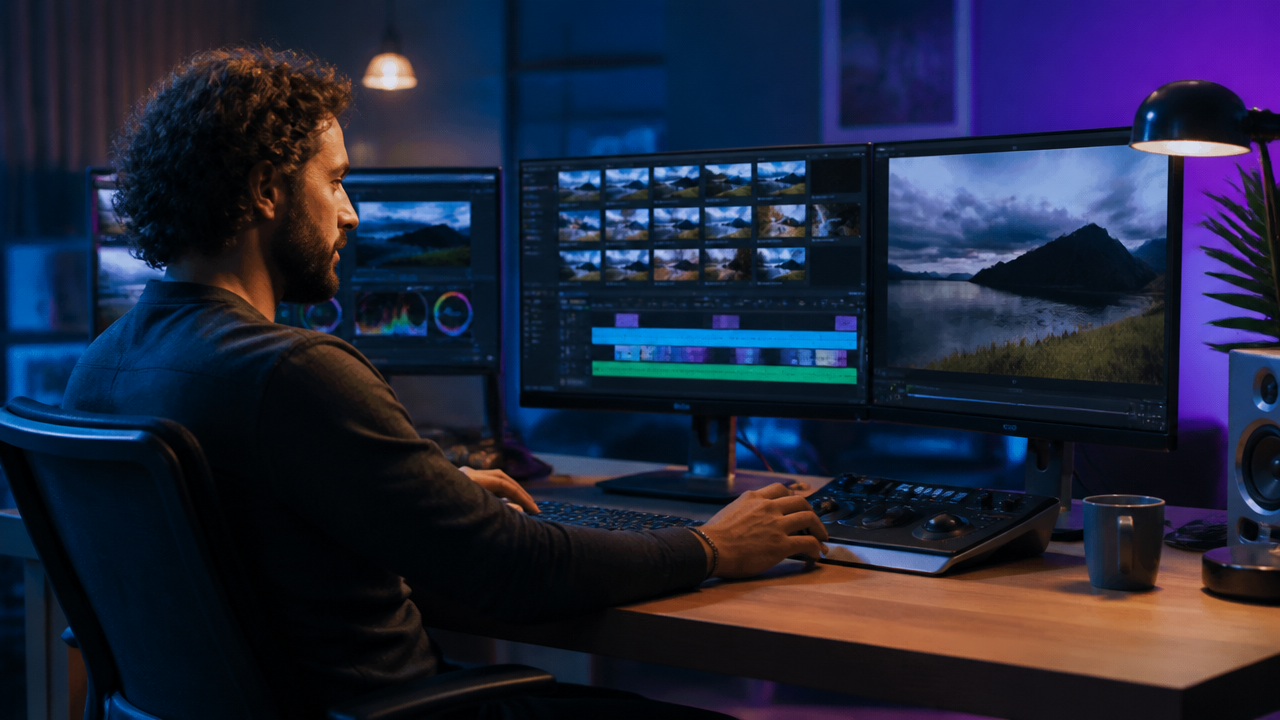
For creators, the impact is practical: less searching, more shaping. Less “Where did I say that?” and more “Give me three story options.”
AI Video Generation vs. AI Video Assembly
An AI Video Generator usually creates new video from text, images, or reference assets. AI video assembly, by contrast, builds a story from existing footage. Both are useful, but they solve different production problems.
| Workflow type | Best for | Input | Output | Creator example |
|---|---|---|---|---|
| AI video generation | Creating new visuals from scratch | Text prompts, images, style references | Fresh clips, animations, scenes | A digital artist generating a surreal intro |
| AI video assembly | Editing existing footage into a story | Raw clips, interviews, vlogs, screen recordings | Edited sequences, highlights, trailers | A podcaster turning a 60-minute episode into 5 clips |
| Hybrid workflow | Mixing original footage with generated assets | Raw footage plus AI images, voice, music | Polished multimedia production | A reviewer adding AI-made product backdrops |
If you want a broader breakdown of text-to-video prompting, tool comparison, and safety checks, I’d pair this workflow with MagicEditAI’s guide to the AI Video Generator. The sweet spot is combining generation and assembly: use real footage for authenticity, then add AI-generated inserts, voiceovers, captions, and music to polish the final cut.
Prompt Templates for Finding the Right Clips Fast
Good AI footage search starts with specific prompts. Don’t ask for “good moments.” Ask for emotion, action, framing, and purpose.
Here are prompt templates I’d keep in a creator editing notebook:
| Goal | Prompt template | Best use |
|---|---|---|
| Emotional moment | “Find clips where the speaker sounds excited, relieved, frustrated, or surprised. Prioritize clear facial expressions and clean audio.” | Vlogs, podcasts, testimonials |
| Product shot | “Find close-up shots of [product] where the item is centered, well-lit, and visible for at least 3 seconds.” | Reviews, ads, tutorials |
| Hook | “Find the strongest opening moment where someone makes a bold claim, asks a sharp question, or reveals a result.” | TikToks, Reels, Shorts |
| Reaction | “Find authentic reactions after [event], especially laughs, pauses, raised eyebrows, or quick emotional shifts.” | Behind-the-scenes, launches |
| Transition | “Find natural transition shots: walking, door opening, camera movement, object placement, or change of location.” | Vlogs, travel, day-in-life edits |
| B-roll | “Suggest B-roll selection prompts for covering this sentence: [paste script line]. Prioritize clips that visually reinforce the main idea.” | Education, business, narration |
The trick is to prompt for editorial function, not just objects. “Find a laptop” is weaker than “Find a 2-second laptop shot that can cover a jump cut while the speaker explains the pricing.”
A Step-by-Step Workflow for Shorts, Reels, TikToks, and YouTube Previews
Here’s the creator workflow automation pattern I’d use for long-form content.
-
Ingest the footage Upload the full video, raw camera clips, screen recordings, product shots, and any supporting images.
-
Generate a content map Prompt:
“Summarize this footage into major sections with timestamps, key claims, emotional peaks, and possible short-form moments.”
-
Write the short-form angles Prompt:
“Create 5 short video concepts from this footage: one educational, one funny, one controversial, one product-focused, and one story-driven.”
-
Select clips for each angle Prompt:
“For concept 2, select a 25-second sequence with a strong hook in the first 2 seconds, one reaction shot, one supporting detail, and a clean ending.”
-
Set pacing Prompt:
“Tighten the edit for social video editing. Remove pauses, keep sentence meaning intact, cut every 1.5 to 3 seconds when visuals are repetitive, and add B-roll over explanations.”
-
Repurpose by platform Prompt:
“Create versions for YouTube Shorts, Instagram Reels, TikTok, and a 15-second YouTube preview. Adjust hook, captions, pacing, and ending for each format.”
-
Finish the media Bring the selected sequence into MagicEditAI to generate missing visuals, edit clips, add voiceover, create music, and package the final piece in one place.
This is where AI content repurposing becomes a real production habit instead of an afterthought. One interview can become a teaser, a tutorial, a quote clip, a product explainer, and a community post.
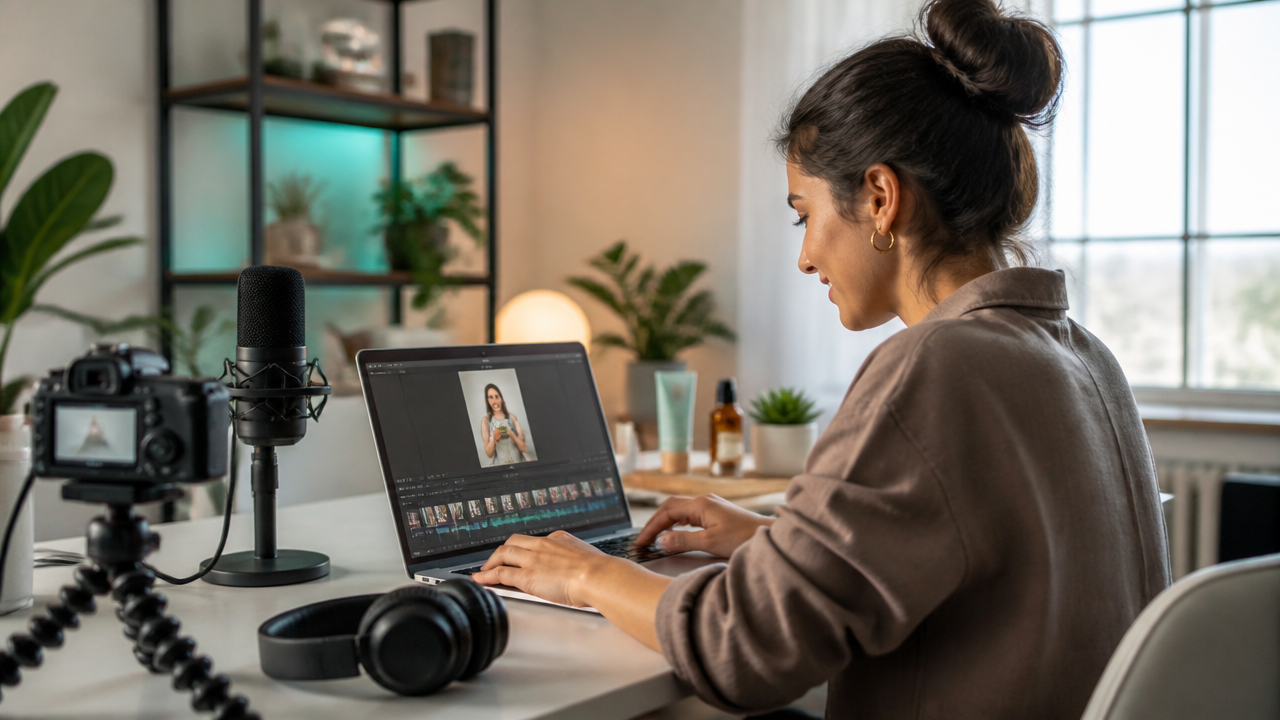
Creator Examples: From Vlogs to Digital Art
Different creators need different prompts. I’d adapt the workflow like this:
| Creator type | Smart prompt | Finished output |
|---|---|---|
| Vlogger | “Find the most cinematic moments from this day, then build a 45-second story with a beginning, problem, and payoff.” | Travel Reel or day-in-life Short |
| Educator | “Find the clearest explanation of each lesson point, then add B-roll suggestions for abstract ideas.” | Mini lesson or course preview |
| Podcaster | “Find 5 moments where the guest gives a strong opinion, useful framework, or personal story.” | Shorts and LinkedIn clips |
| Product reviewer | “Find hands-on product shots, comparison moments, flaws, and final verdict lines.” | Review highlight or buying guide |
| Digital artist | “Find process footage showing sketch, color, detail, and final reveal. Suggest generated background visuals.” | Portfolio video or launch teaser |
If your workflow also uses avatars, AI images, or voiceover matching, MagicEditAI’s post on turning AI images into professional videos with prompts is a useful companion.
Quality Control Before You Publish
AI can speed up editing, but the final call is still yours. I’d run every AI-assisted edit through this checklist:
- Continuity: Check hand positions, locations, lighting, clothing, and timeline order. A reaction from later in the shoot can feel fake if it appears too early.
- Factual accuracy: Make sure cuts don’t change the meaning of a sentence. This is crucial for educators, reviewers, and podcasters.
- Brand voice: Ask whether the hook, captions, music, and pacing feel like you. Fast doesn’t always mean better.
- Captions: Review names, product terms, numbers, and jargon manually.
- Music fit: Match the track to the emotional arc. A calm tutorial doesn’t need a dramatic trailer score.
- Rights and releases: Confirm you’re allowed to use footage, voices, music, and generated assets commercially when needed.
MagicEditAI fits neatly here because it gives creators one place to generate, edit, voice, and score finished media. You can use AI to assemble the story, then use MagicEditAI to create missing shots, refine visuals, add narration, and finish the sound design without bouncing between five separate tools.
Conclusion
The Rodeo announcement shows where editing is headed: creators won’t just prompt new clips, they’ll prompt entire workflows around the footage they already captured. The best results will come from combining script prompts, clip-selection prompts, pacing prompts, and human review. That’s the real shift, from raw files sitting in folders to finished stories ready for every platform.
Ready to turn your next idea into finished media? Try the free trial on MagicEditAI to create your first edited image or AI-generated video.

 MagicEdit