Gemini Omni Flash Is Here: 25 Conversational AI Video Prompts Creators Can Use Right Now
Table of Contents
- Why Gemini Omni Flash Matters Now
- The Prompt Formula I Use for Short-Form Video Creation
- 25 Conversational Video Prompts Creators Can Use Right Now
- How to Revise Clips Conversationally
- Rapid Storyboarding Before Final Production
- Free AI Video Questions Creators Ask
- Limitations, Transparency, and Brand Safety
- Conclusion: Your Reusable AI Video Generator Prompt Checklist
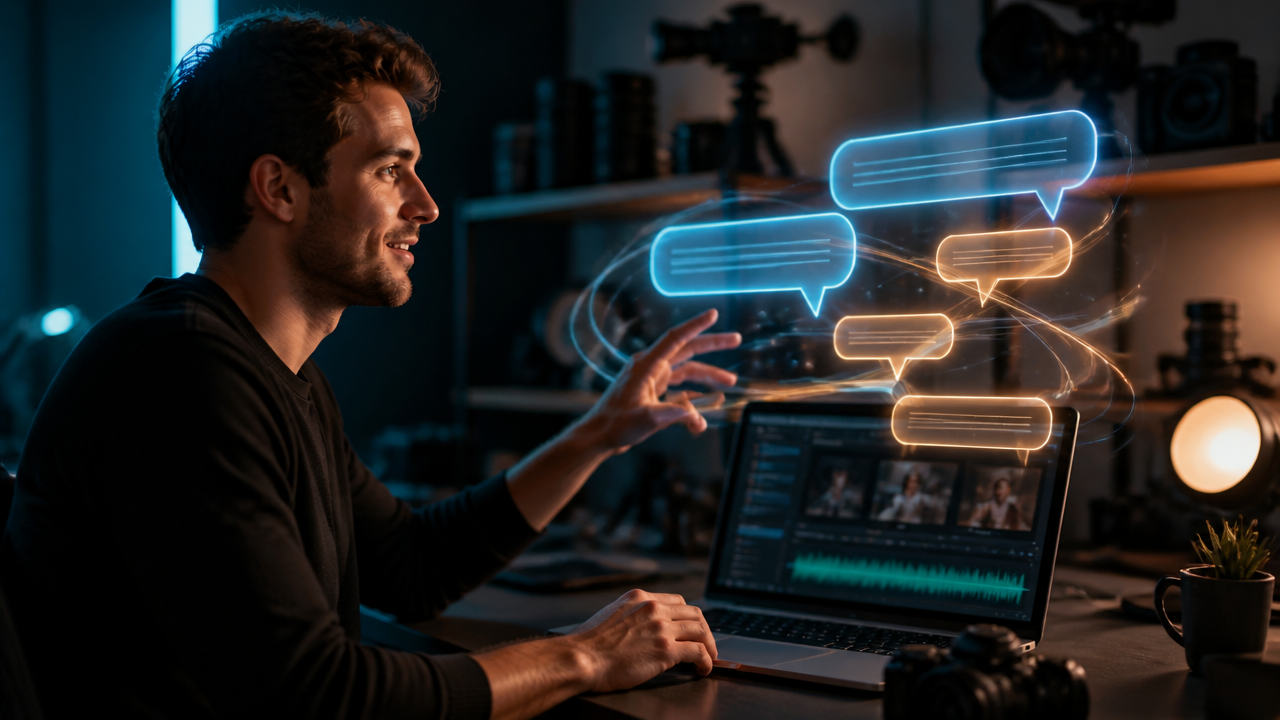
Google’s Gemini API release notes now list Gemini Omni Flash in public preview as gemini-omni-flash-preview, a model built for fast video generation and conversational video editing. For any creator using an AI Video Generator, the big shift is simple: you can generate a short clip, then keep refining it in plain English instead of starting over every time. Google’s docs describe support for text, image, and video inputs, with video outputs in the 3 to 10 second range at 720p and 24 FPS. (ai.google.dev)
Why Gemini Omni Flash Matters Now
Short-form video creation has always had one annoying bottleneck: revision. The first version is rarely the final version. Maybe the hook is too slow, the background feels off-brand, or the camera move doesn’t match the energy of the audio.
Gemini Omni Flash-style editing changes that workflow. Instead of writing a huge new prompt, creators can ask for targeted changes like, “Make the lighting warmer,” “Change this to a close-up,” or “Keep the subject, but replace the background with a clean studio set.” Google’s Gemini Omni Flash guide shows this conversational pattern through the Interactions API, where a previous result can be edited in a later turn. (ai.google.dev)
That matters because speed compounds. If I can test five hooks, three visual styles, and two product angles before lunch, I’m not just moving faster. I’m making better creative decisions.
The Prompt Formula I Use for Short-Form Video Creation
I like to treat video prompts like mini creative briefs. The clearer the brief, the less cleanup later.
| Prompt Element | What to Include | Example |
|---|---|---|
| Subject | Person, product, object, or scene | “A ceramic coffee mug on a marble counter” |
| Scene | Location and environment | “Morning kitchen with soft window light” |
| Camera movement | Push-in, pan, handheld, overhead | “Slow push-in from waist height” |
| Style | Realistic, cinematic, UGC, macro, 3D | “Premium lifestyle ad, natural color” |
| Duration | Short clip length | “6 seconds” |
| Pacing | Calm, punchy, fast cuts, slow reveal | “Quick first 2 seconds, smooth ending” |
| Platform format | 9:16, 1:1, 16:9 | “Vertical 9:16 for TikTok and Reels” |
A strong base prompt might look like this:
Create a 6-second vertical 9:16 video of a reusable water bottle on a hiking trail at sunrise. Use a slow push-in camera move, cinematic natural light, crisp product focus, upbeat pacing, and room at the top for captions. No logos, no extra text.
For a broader workflow primer, I’d pair this with MagicEditAI’s guide to the AI Video Generator, especially if you’re comparing tools, rights, quality, and brand-safety factors.
25 Conversational Video Prompts Creators Can Use Right Now
Use these as starting points, then revise them conversationally.
| # | Use Case | Prompt Template |
|---|---|---|
| 1 | Text-to-video | “Generate a 7-second vertical video of [subject] in [setting], with [camera move], [style], and [pacing].” |
| 2 | Text-to-video hook | “Create a fast 3-second opener showing [problem] visually, dramatic lighting, no text.” |
| 3 | Text-to-video lifestyle | “Show [product] being used naturally by [audience] in [location], handheld UGC style.” |
| 4 | AI storyboard generator | “Create a rough visual storyboard clip for a video about [topic], with 3 quick scenes.” |
| 5 | Image to video prompts | “Animate this image into a 6-second realistic clip. Keep the subject consistent and add subtle motion.” |
| 6 | Image-to-video product | “Use this product image as the hero object. Add a slow rotating camera move and soft studio lighting.” |
| 7 | Product teaser | “Create a 5-second teaser for [product], macro shots, premium lighting, slow reveal.” |
| 8 | Product launch | “Show [product] emerging from shadow into bright light, cinematic ad style, 9:16.” |
| 9 | Tutorial intro | “Create a 4-second tutorial intro showing hands preparing [task], overhead camera, clean workspace.” |
| 10 | Tutorial step | “Show one clear action: [step]. Keep the motion simple, realistic, and easy to follow.” |
| 11 | Cinematic B-roll | “Generate atmospheric B-roll of [scene], slow pan, shallow depth of field, natural movement.” |
| 12 | Travel B-roll | “Create a vertical clip of [destination detail], golden hour, smooth gimbal motion.” |
| 13 | Social ad variation A | “Make a punchy UGC-style ad opening for [offer], fast movement, natural phone-camera feel.” |
| 14 | Social ad variation B | “Make the same ad feel more premium, polished lighting, slower camera move, luxury tone.” |
| 15 | Social ad variation C | “Make the same ad more playful, brighter colors, faster pacing, casual creator energy.” |
| 16 | Background swap | “Replace the background with [new setting]. Keep everything else the same.” |
| 17 | Camera angle | “Change to a close-up side angle. Keep the subject, colors, and motion consistent.” |
| 18 | Lighting edit | “Make the lighting warmer and softer, like late afternoon window light.” |
| 19 | Brand-safe edit | “Remove anything risky, cluttered, or distracting. Make it suitable for a family-friendly brand.” |
| 20 | Motion fix | “Reduce the motion. Make the movement smoother and more realistic.” |
| 21 | Caption-safe framing | “Reframe the shot with clean empty space in the upper third for captions.” |
| 22 | Platform crop | “Convert this to 9:16 vertical while keeping the main subject centered.” |
| 23 | Color style | “Adjust the clip to a clean modern palette with soft neutrals and high contrast.” |
| 24 | Audio direction | “Add upbeat background music energy, no dialogue, no distracting sound effects.” |
| 25 | Final polish | “Make this feel like a finished social ad. Keep the message clear, polished, and brand-safe.” |
How to Revise Clips Conversationally
Here’s where the video editing workflow gets fun. I don’t try to fix everything at once. I make one clean request per turn.
Try this sequence:
- “Change the camera angle to a low-angle product close-up. Keep everything else the same.”
- “Make the lighting brighter and more natural.”
- “Replace the busy background with a minimal studio wall.”
- “Remove any confusing objects and make the clip brand-safe.”
- “Create three versions: energetic, premium, and casual.”
Google’s own prompt guidance recommends simple editing prompts and adding “Keep everything else the same” when you want consistency. (ai.google.dev)
Rapid Storyboarding Before Final Production
I wouldn’t treat every generated clip as a final asset. Sometimes the best use of AI video generation is rapid storyboarding.
Use Gemini Omni Flash-style outputs to test:
- Hook concepts before shooting
- Product angles before rendering final media
- Camera movement before building a full edit
- Scene pacing before adding voiceover, music, and captions
Then bring the winning direction into an all-in-one platform like MagicEditAI, where creators can generate and edit videos, images, voiceovers, and music in one place. That’s a stronger production path than jumping between five disconnected content creator tools.
If your workflow starts from still images, MagicEditAI’s guide to turning AI images into professional videos with prompts is a useful next step.
Free AI Video Questions Creators Ask
Is there a 100% free AI video maker?
Sometimes, but “free” usually means limited generations, lower resolution, watermarks, slower queues, or restricted commercial features. For serious publishing, I’d test free tiers for ideation, then use a paid or trial workflow for final assets.
Can ChatGPT create videos for free?
As of the latest OpenAI help content I found, ChatGPT’s free tier mentions features like web search, file uploads, GPTs, and image creation, but not free native video creation. OpenAI also states that the Sora web and app experiences were discontinued on April 26, 2026, with the Sora API scheduled for discontinuation on September 24, 2026. (help.openai.com)
Is Veo 3 AI free?
For Gemini API developers, Google’s pricing page lists Veo 3 and Veo 3.1 video models as not available on the Free Tier, with paid per-second pricing. The same page also lists Gemini Omni Flash Preview as available to developers on the paid tier of the Gemini API. (ai.google.dev)
Which AI can generate a video?
Several tools can generate video, including Gemini Omni Flash, Veo, Kling, Runway-style editors, Adobe Firefly, Canva, Synthesia, and all-in-one platforms like MagicEditAI. My advice: choose based on the job. Use avatar tools for explainers, cinematic models for B-roll, image-to-video tools for product motion, and MagicEditAI when you want generation plus editing in one creative workspace.
Limitations, Transparency, and Brand Safety
AI video is fast, but it still needs human review. Watch closely for:
| Limitation | What Can Go Wrong | Quick Fix |
|---|---|---|
| Motion consistency | Objects warp or move unnaturally | Ask for slower, simpler movement |
| Hands | Fingers may look distorted | Use wider shots or fewer hand actions |
| Facial continuity | Faces shift between frames | Keep shots short and avoid extreme turns |
| Brand accuracy | Logos, packaging, or colors may drift | Upload references and verify manually |
| Prompt drift | The model changes unrelated details | Add “Keep everything else the same” |
Transparency also matters. Google states that generated Gemini Omni Flash videos include SynthID watermark provenance signals, invisible to viewers but programmatically detectable. The docs also note content safety filters and current limitations around uploaded media, regions, voice editing, negative prompts, and multi-video references. (ai.google.dev)
Conclusion: Your Reusable AI Video Generator Prompt Checklist
Gemini Omni Flash points toward a faster future for short-form video creation: generate, review, revise, and polish through conversation. The best results still come from clear creative direction, not random prompting.
Before you generate your next clip, run this checklist:
- Subject is specific
- Scene is easy to visualize
- Camera movement is named
- Style matches the platform
- Duration is stated
- Pacing is intentional
- Format is set, such as 9:16 or 16:9
- Brand rules are included
- Negative details are written plainly
- Revision prompts change one thing at a time
Ready to put these prompts to work? Try the free trial on MagicEditAI to create your first edited image or AI-generated video.

 MagicEdit