Grok Imagine Video 1.5 Is Raising the Bar: Prompt Recipes for Audio-Synced AI Videos
- Why Grok Imagine Video 1.5 Matters Right Now
- How Audio-Aware Prompting Changes the Creative Brief
- Prompt Recipes for Audio-Synced AI Videos
- Turning One Image Into a Branded Short Video
- Before-and-After Prompt Refinements
- Common Failure Modes and Quick Fixes
- A Practical AI Video Workflow for Creators
- Conclusion
On June 4, 2026, AI Tech Suite reported that xAI’s Grok Imagine Video 1.5 had launched with image-to-video generation, hyper-realistic motion, synchronized audio, and quick leaderboard attention. For anyone using an AI Video Generator, that timing matters. The creative bar is moving from “make this image move” to “make this image perform.” xAI’s own June 3 announcement says grok-imagine-video-1.5-preview can turn a still image into cinematic video with prompt-directed camera moves, pacing, atmosphere, physics, and sound design, up to 720p. (aitechsuite.com)
Why Grok Imagine Video 1.5 Matters Right Now
The big shift with Grok Imagine Video 1.5 is the push toward synchronized audio as part of the video idea, not as an afterthought. Silent generative AI video can look impressive, but creators still have to add footsteps, whooshes, ambience, dialogue, music, and timing later.
That slows down short-form content creation.
When video and audio are conceived together, a product reveal can land on a bass hit. A character can turn before a line of dialogue. A coffee pour can match the sound of steam and ceramic clink. These tiny sync points make AI-made clips feel edited, not assembled.
For MagicEditAI creators, this is exactly where an all-in-one platform shines: generate the clip, refine the image, add voiceover, pair music, and polish the final edit without bouncing across five different tools.
How Audio-Aware Prompting Changes the Creative Brief
Old silent text-to-video prompting usually focused on:
- Subject
- Visual style
- Motion
- Camera angle
- Duration
Audio-aware prompting needs a fuller creative brief. You’re directing both the shot and the sound bed.
A stronger prompt includes:
| Prompt Element | What to Specify | Example |
|---|---|---|
| Scene goal | What the clip must communicate | “Luxury skincare product reveal” |
| Camera motion | How the viewer moves through the scene | “Slow push-in, slight orbit left” |
| Subject motion | What changes in-frame | “Mist rises, bottle rotates 20 degrees” |
| Sound cues | Effects that match the action | “Soft glass tap, airy shimmer, subtle water droplets” |
| Rhythm | Timing and pacing | “Reveal logo on the final beat” |
| Dialogue timing | Short line placement | “Voice whispers the tagline after the product turn” |
| Ambience | Background world | “Quiet spa room, low room tone, gentle water” |
| Edit notes | What to avoid | “No clutter, no extra hands, no text overlays” |
If you’re still building your prompting foundation, I’d pair this article with MagicEditAI’s guide to the AI Video Generator, which covers tool selection, quality checks, and brand-safety basics.
Prompt Recipes for Audio-Synced AI Videos
Use these as starting points. Replace the bracketed details with your product, character, or campaign details.
| Use Case | Prompt Template |
|---|---|
| Product teaser | “Animate the provided product image into a [6-second] cinematic product teaser. Keep the product shape and label consistent. Camera slowly pushes in from a low angle while [material detail] catches light. Add synchronized audio: soft studio ambience, subtle mechanical turntable hum, one clean bass hit as the product faces camera. Mood: [premium, playful, futuristic]. Aspect ratio: [9:16].” |
| TikTok or Reels hook | “Create a fast [5-second] vertical hook from this image. Start with a quick zoom-in, then a satisfying snap transition as [main object] moves toward camera. Add synchronized sound effects: short riser, crisp pop, light impact on beat three. Keep the scene simple and high contrast for mobile viewing.” |
| Cinematic intro | “Turn this character image into an [8-second] cinematic intro. Wind moves hair and clothing slightly. Camera performs a slow dolly-in with shallow depth of field. Add low atmospheric rumble, distant footsteps, and a soft breath before the character looks toward camera. Preserve facial identity and costume details.” |
| Music visualizer | “Animate this album art into a looping [10-second] music visualizer. Background particles pulse gently to a mid-tempo beat. Camera remains mostly locked with minor parallax. Add synchronized audio-reactive light flickers, soft kick pulses, and dreamy ambience. No extra objects.” |
| Explainer clip | “Use this product image to create a clean [7-second] explainer shot. Camera pans from left to right as three key parts subtly highlight through motion and light. Add light UI-style beeps, soft whoosh transitions, and calm voiceover timing with a pause after each feature. Keep background uncluttered.” |
Turning One Image Into a Branded Short Video
A single product image or character image can become a complete micro-scene if you prompt it like a director.
Here’s my favorite structure:
- Start with the asset: “Use the uploaded image as the exact starting frame.”
- Lock identity: “Preserve face, product label, color, proportions, and material.”
- Add controlled motion: “Rotate slowly, 15 degrees, no shape warping.”
- Describe sound: “Soft click, room tone, gentle sparkle on reveal.”
- Set mood: “Minimal, premium, calm, warm studio lighting.”
- Define output: “6 seconds, 9:16, no captions, no extra objects.”
Example:
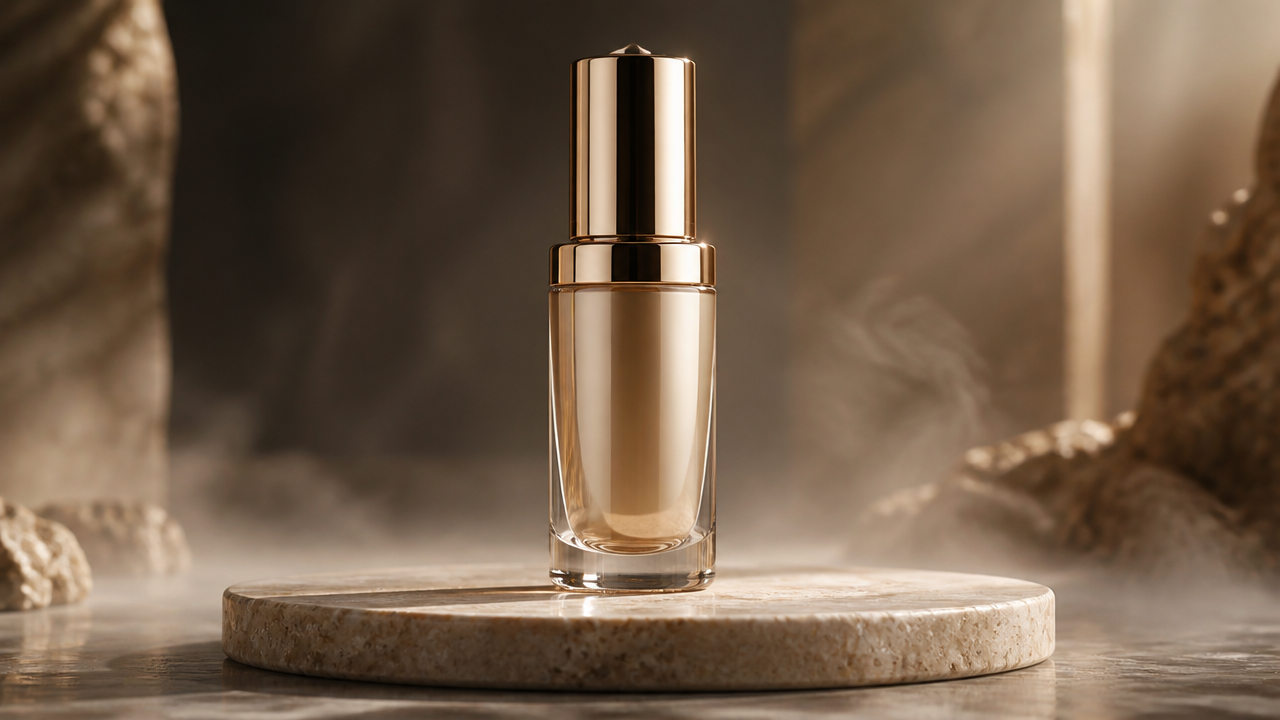
“Use the uploaded skincare bottle as the exact starting frame. Preserve label, bottle shape, cap color, and glass texture. Create a 6-second vertical cinematic product video. Camera slowly pushes in while the bottle rotates 15 degrees on a matte stone surface. Add synchronized audio: soft turntable hum, tiny glass clink at second 3, airy shimmer on the final reveal. Mood: clean, premium, calm. No hands, no text, no extra products.”
This is also where MagicEditAI fits nicely into an AI video workflow. You can generate the visual, refine the product still, add a voiceover, pair music, and edit the final clip for Shorts, Reels, or ads from one creative workspace.
Before-and-After Prompt Refinements
Here’s how a weak prompt becomes production-ready.
| Stage | Prompt |
|---|---|
| Vague prompt | “Make this shoe look cool in a video with music.” |
| Structured prompt | “Turn this shoe image into a 6-second vertical product video. Camera pushes in while the shoe rotates slowly. Add upbeat music and a whoosh.” |
| Professional prompt | “Use the uploaded sneaker as the exact starting frame. Preserve shape, logo placement, sole texture, and color. Create a 6-second 9:16 cinematic product video. Camera starts low, pushes in, then orbits 20 degrees right. Add synchronized audio: soft street ambience, rubber sole tap at second 2, quick whoosh during orbit, bass hit on final hero frame. Mood: urban, energetic, premium. Clean background, no extra shoes, no text overlays.” |
| Editing prompt | “Tighten the motion. Reduce camera shake. Keep the sneaker centered. Make the bass hit align with the final front-facing frame. Lower ambience volume and remove any extra object in the background.” |
For a related image-to-video workflow, MagicEditAI’s article on turning AI images into professional videos with prompts is a useful next read.
Common Failure Modes and Quick Fixes
Generative AI video is powerful, but it still needs direction. I watch for four issues:
| Problem | What It Looks Like | Fix in the Prompt |
|---|---|---|
| Mismatched sound effects | A whoosh plays before the camera move, or footsteps don’t match motion | “Sync the whoosh exactly with the camera orbit. Keep footsteps subtle and aligned with visible steps.” |
| Overactive motion | The camera flies around or the product warps | “Use restrained motion. Slow push-in only. No fast cuts, no extreme zooms.” |
| Inconsistent character identity | Face, outfit, or product details drift | “Preserve facial identity, clothing, colors, logo placement, and proportions throughout.” |
| Cluttered scenes | Extra props, hands, or background objects appear | “Minimal scene. No extra objects, no hands, no text, clean background.” |
Compared with tools like Google Veo, Runway, and Synthesia, the practical lesson is the same: the more specific your AI video prompts are, the more control you keep. The model can improvise style, but your prompt should control timing, framing, and brand consistency.
A Practical AI Video Workflow for Creators
Before you generate, run through this quick checklist.
| Checklist Item | Creator Notes |
|---|---|
| Input asset | Product photo, character image, logo-safe visual, or key art |
| Scene goal | Hook, teaser, intro, tutorial, visualizer, or ad variation |
| Camera direction | Push-in, orbit, pan, locked shot, handheld, macro close-up |
| Sound design | Ambience, effects, beat hits, dialogue timing, music mood |
| Duration | Usually 5 to 10 seconds for short-form content creation |
| Aspect ratio | 9:16 for TikTok/Reels/Shorts, 1:1 for feeds, 16:9 for YouTube |
| Final edit notes | Remove clutter, tighten sync, add voiceover, balance music |
This checklist works especially well for cinematic product videos, explainer snippets, and multimedia content creation where visuals, voice, and music need to feel like one finished piece.
Conclusion
Grok Imagine Video 1.5 is a clear signal: generative AI video is becoming more audio-aware, more promptable, and more useful for real creator workflows. The best results won’t come from typing “make it cinematic” and hoping for the best. They’ll come from prompts that direct motion, sound, rhythm, identity, and edit notes in one clean brief.
MagicEditAI is built for that next step. You can move from idea to image, video, voiceover, music, and final edit in one place, which makes it easier to test faster, keep quality high, and publish while the trend is still hot.
Ready to make your first polished asset? Try the free trial on MagicEditAI to create your first edited image or AI-generated video.

 MagicEdit