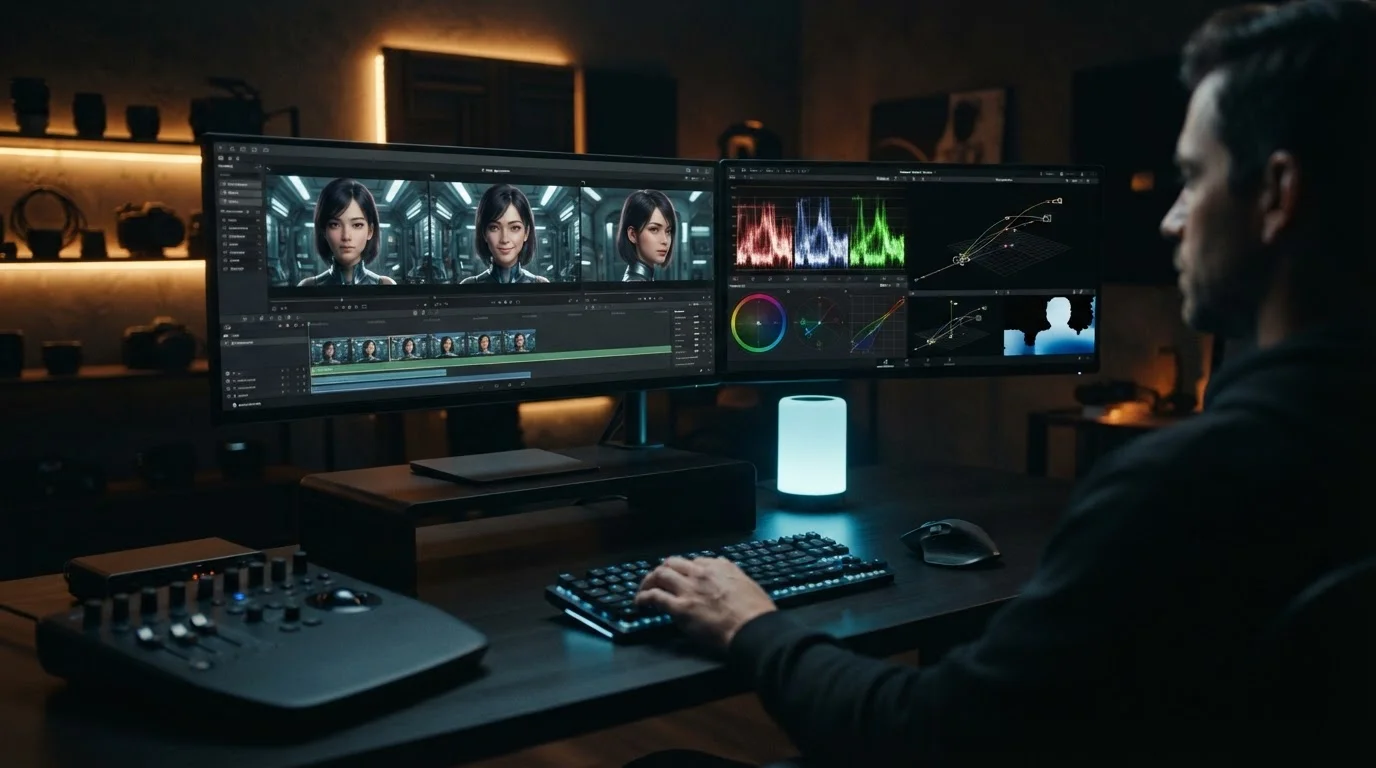
How to Maintain Character Consistency in an AI Video Generator: Advanced Prompts & Workflows
Table of Contents
- Visual Continuity: The Challenge of Character Persistence
- Building Anchor Prompts for Character Traits
- Directing Motion: Camera Movement Prompts for Cinematic Shots
- Leveraging Seed Control, Reference Frames, and Motion Settings
- A Step-by-Step Workflow from Concept to Final Render
- Conclusion
If you have ever tried building a story driven short film with a modern ai video generator, you know the frustration. The protagonist's jacket changes color in scene two, their hair shape mutates by scene three, and their facial structure shifts every time the camera turns. Rendering isolated 4-second clips is easy enough, but creating a cohesive narrative requires visual stability across your entire project.
To fix this, we need to treat AI tools like a digital production set. By pairing static character anchors with controlled dynamic motions, you can produce clean, multi-clip projects without losing character identity.
Visual Continuity: The Challenge of Character Persistence
Generative video models process prompts probabilistically. When you enter a fresh prompt for scene two, the engine interprets every word from scratch. Unless you specify fixed anchors, the model fills in visual gaps using random variation. That is why your lead actor suddenly gains sunglasses or loses a denim jacket between cuts.
Maintaining visual continuity requires strict discipline over three core elements: - Facial geometry and identity tags - Clothing textures and distinctive gear - Scene lighting and color grading
When these elements stay fixed, your audience focuses on the plot rather than noticing shifting visual glitches.
Building Anchor Prompts for Character Traits
The foundation of visual persistence relies on structured text-to-video prompts. Instead of vague descriptions like "a tall male detective," build a detailed text block that stays identical across every clip generation. We call this an anchor prompt.
To make an anchor prompt effective, isolate specific visual identifiers: 1. Age and Heritage: Specify exact demographics (for example, "30-year-old East Asian man"). 2. Distinctive Features: Include subtle facial details like "sharp jawline, short textured crop haircut, faint scar on left cheek." 3. Fixed Wardrobe: Lock down the outfit using precise colors and materials, such as a "matte black bomber jacket over a slate grey crewneck t-shirt."
When you write new action prompts, keep this anchor block intact at the beginning of every prompt string, adding only scene movements at the end. For broader context on how core prompt strategies influence output structure, check out our guide on AI Video Generator mechanics.
Directing Motion: Camera Movement Prompts for Cinematic Shots
Once your character design is locked down, you need to move the camera without warping the subject's face. Standard prompts often produce floaty or unpredictable movement. Writing clear camera movement prompts gives you control over speed, direction, and spatial focus to produce a polished cinematic ai video.
Here is a practical breakdown of how specific directional prompts behave during generative ai video production:
| Camera Direction Prompt | Visual Result | Best Use Case | Risk Factor |
|---|---|---|---|
Slow pan right, static head lock |
Background scrolls smoothly while subject remains centered | Dialogue, walking shots | Low character distortion |
Low-angle tracking shot, backward move |
Follows character front-facing as they walk forward | Hero entrances, intense walks | Medium distortion at clip edges |
360-degree orbit shot around subject |
Rotates full circle around standing character | Dramatic reveals, character intros | High distortion on facial profile |
Slow vertical tilt up from boots to face |
Scans character vertically while preserving focal point | Outfit reveals, character intros | Low character distortion |
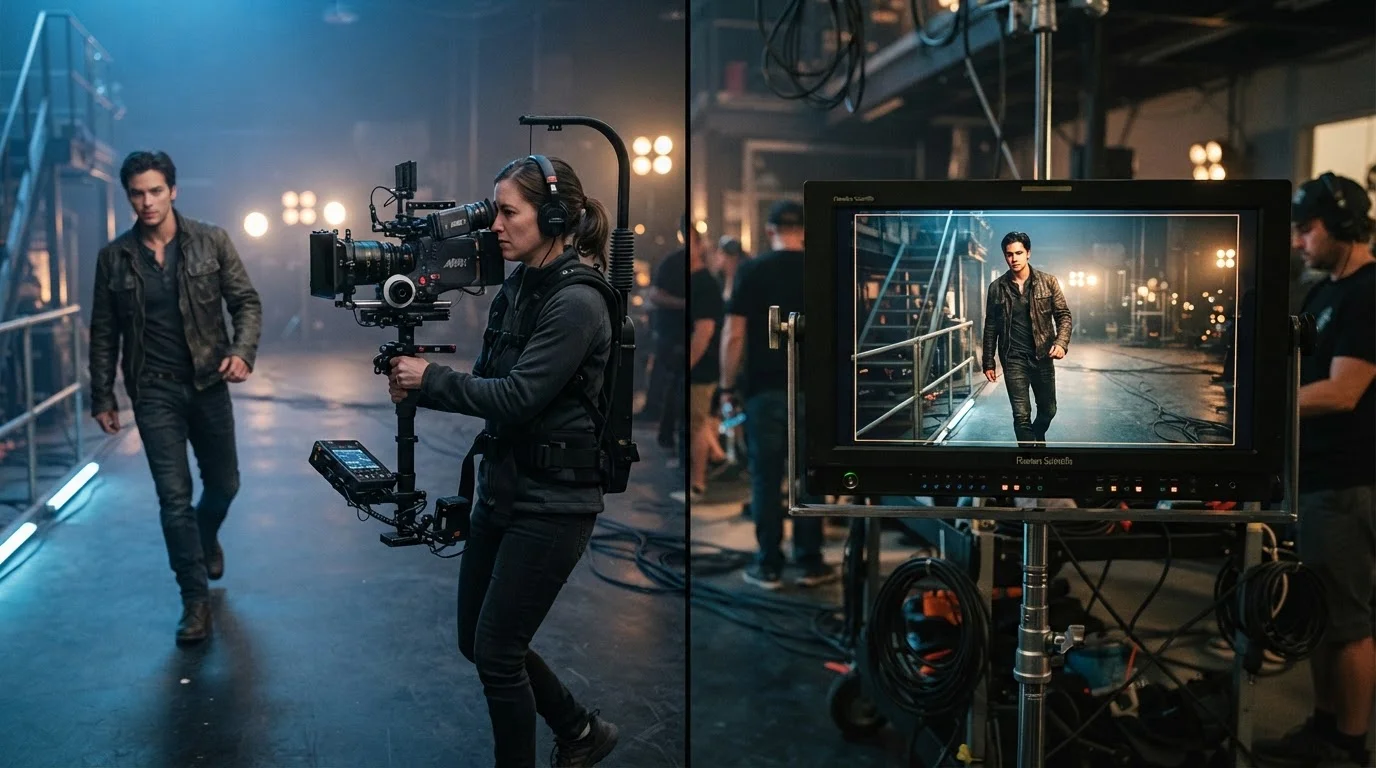
Mixing these movements with strict anchor prompts keeps the focus clear while adding natural dramatic energy.
Leveraging Seed Control, Reference Frames, and Motion Settings
Prompt engineering alone only gets you partway there. To lock in true visual consistency, you must take advantage of advanced ai video model capabilities like seed control and multi-modal image-to-video guidance.
First, lock your seed number whenever your platform allows it. Using the same numerical seed across prompts encourages the diffusion engine to start from a similar noise pattern.
Second, start your generation chain with image-to-video workflows. Generate a high-resolution base portrait first, then feed that image into the video model as the initial frame. This grounds the scene visually so the AI focuses purely on translating motion rather than inventing face geometry.
Finally, adjust your motion slider settings. High motion values (7 to 10) often cause characters to morph or warp over multi-second clips. Dialing motion sliders down to a moderate level (3 to 5) keeps facial structures solid while preserving atmospheric motion.
A Step-by-Step Workflow from Concept to Final Render
Here is the straightforward workflow we use to produce consistent multi-shot video stories:
- Generate the Hero Still: Render a clean portrait of your character using your anchor prompt until you get the exact look you want.
- Set the Reference Frame: Load your chosen portrait into your ai video generator as the starting image frame.
- Add Motion Prompts: Append specific camera directions (such as "slow push-in tracking shot") to your base character prompt string.
- Render Short Scene Clips: Produce 3 to 5 second clips at moderate motion strength settings.
- Review and Re-seed: If the character face distorts during dynamic motion, lower the motion value slightly or adjust seed parameters before re-rendering.
- Assemble and Edit: Bring your finished clips into your editor, matching cuts on action to ensure fluid narrative pacing.
If you are exploring alternative prompt structures across different platforms, reviewing workflows in guides like Gemini Omni Is Here: 12 AI Video Prompts Creators Can Use to Generate and Edit Videos Faster can give you additional inspiration for prompt structure and timing tweaks.
Conclusion
Creating professional narrative video with AI tools no longer requires random guessing. By pairing precise character anchor descriptions with explicit camera motion prompts and reference image workflows, you maintain full creative authority over every cut. When your characters stay consistent, your visual storytelling looks polished and cinematic from the first shot to the last.
Ready to test these prompting techniques on your next project? Head over to MagicEditAI and start your free trial today to render your first character-consistent AI video and polished image edit.
 MagicEdit