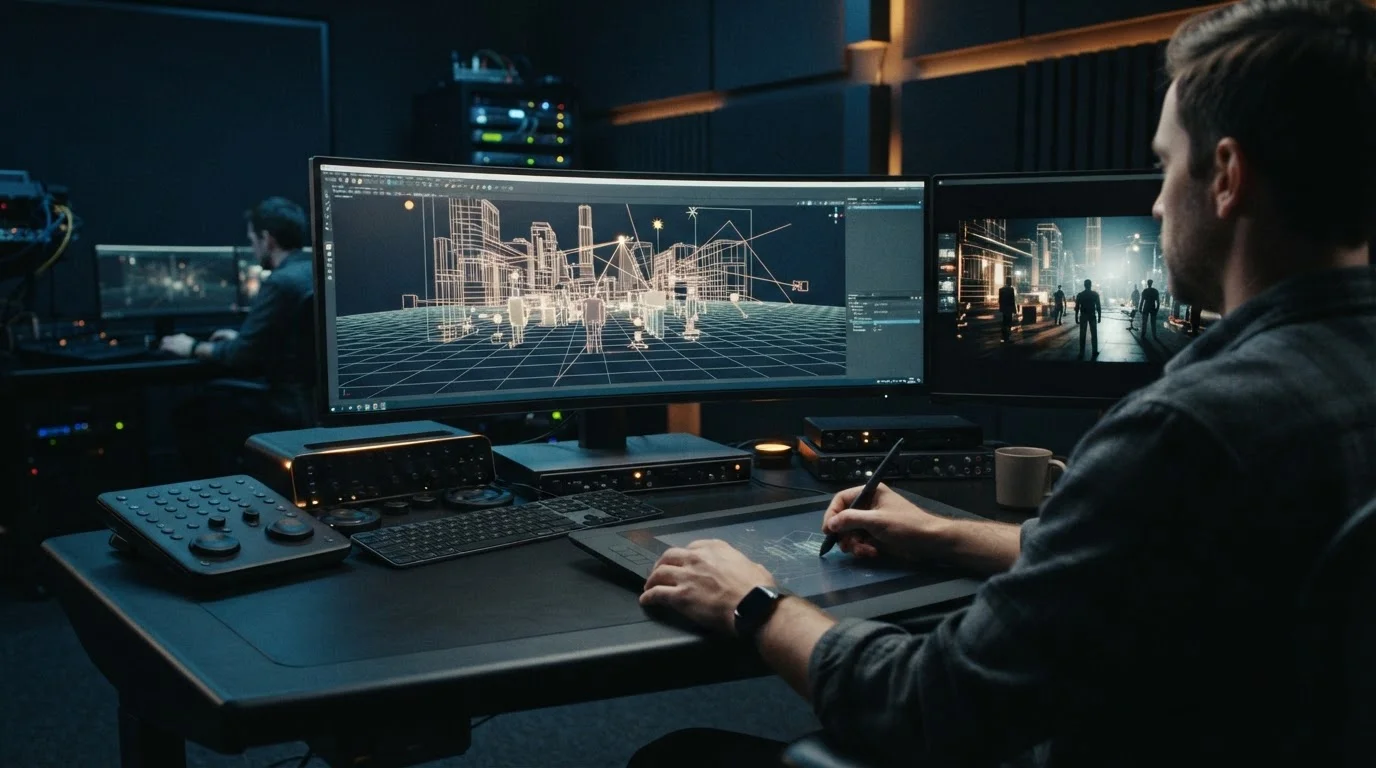
Mastering Directable AI Video: How 3D Canvas Staging Transforms Generative Video Production
- The Shift Toward Precise Spatial Control
- Step-by-Step: Staging Scenes and Crafting Hybrid Prompts
- Scaling Directable AI Video Workflows with MagicEditAI
- Conclusion
On August 4, 2026, Autodesk introduced its 3D Editor + Canvas within Autodesk Flow Studio [1]. This release marks a massive leap forward for Directable AI Video, giving creators the spatial precision they need to command generative renders [1]. For years, turning text prompts into cinematic clips felt like spinning a roulette wheel [1]. You typed a prompt, crossed your fingers, and hoped the camera would pan the right way without warping your character's face. Now, by anchoring generative models directly to 3D spatial coordinates, creators can direct scenes with pixel-perfect confidence [1].
The Shift Toward Precise Spatial Control
Pure text-to-video models struggle with temporal consistency and exact framing [1]. If you ask a standard model for a wide shot that moves into a close-up, it might replace your main character midway through the camera push.
By incorporating a 3D Editor Canvas, creators bridge the gap between traditional 3D layout software and Generative AI Video [1]. Instead of relying solely on descriptive language, you place low-poly 3D character models, primitive props, and virtual light sources directly onto a scene grid [1]. The AI model then uses this spatial blockout as a geometric guide, wrapping textures, lighting, and movement around your layout [1].
Here is how traditional text-prompted generation stacks up against 3D-directed workflows:
| Control Feature | Text-Only Generative AI Video | 3D Canvas Directable AI Video |
|---|---|---|
| Subject Placement | Unpredictable; relies on prompt interpretation | Exact XYZ canvas coordinates |
| Camera Tracking | Text hints like "drone shot" or "pan right" | Precise spline paths and keyframe timing |
| Lighting Setup | Described via style keywords | Directional lights and shadows set in 3D space |
| Character Consistency | High rate of visual drift across cuts | High spatial continuity anchored to 3D meshes |
Step-by-Step: Staging Scenes and Crafting Hybrid Prompts
Building a cinematic shot through Directable AI Video follows a clear, structured pipeline [1]. You do not need to be a veteran visual effects artist to execute this workflow:
- Stage 3D Asset Geometry: Import low-poly character proxies and simple primitive shapes into the scene [1]. Position your subject in the foreground and align background elements to establish exact depth.
- Set Virtual Camera Motion Prompts: Plot a physical camera path across the grid [1]. Define keyframes for focal length, tracking speed, and tilt angles to establish fluid Camera Motion Prompts without visual surprises [1].
- Establish Scene Lighting: Place directional lights and ambient points on the canvas [1]. This forces the generative model to respect consistent light sources and shadow casts during render time [1].
- Formulate Hybrid Prompts: Combine your spatial scene data with descriptive style tags [1]. For instance, link camera wireframe data with tags like "photorealistic cinematic lighting, anamorphic lens flare, 8k resolution" to achieve ideal AI Scene Composition [1].
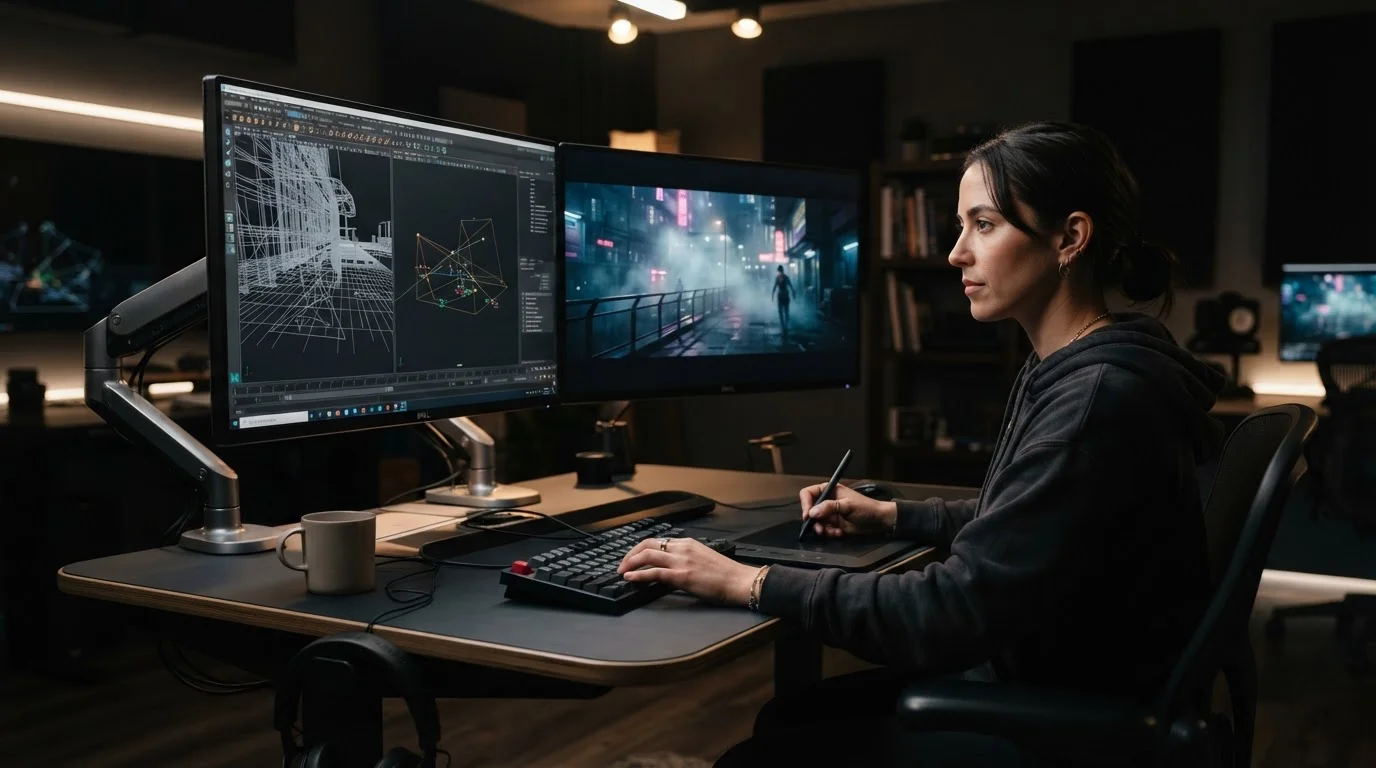
Scaling Directable AI Video Workflows with MagicEditAI
While complex visual effects suites offer detailed staging environments, mainstream content creators need speed. Mastering these spatial techniques within MagicEditAI Workflows allows digital artists to generate professional content without spending hours setting up heavy render pipelines.
Platforms like MagicEditAI streamline production by pairing directable controls with multi-modal generation tools. You can take your spatially-directed video clips and immediately pair them with AI-generated voiceovers, sound effects, and custom background music in one workspace. If you are comparing different tools, exploring a versatile AI Video Generator shows how spatial directing bridges the gap between raw AI outputs and commercial-grade media production.
By combining precise camera paths with an all-in-one platform, you remove the friction from post-production. You can edit visual assets, adjust lighting prompts, and refine spatial timing on the fly, delivering studio-quality videos in minutes rather than days.
Conclusion
Spatial 3D control eliminates the guesswork from generative media production [1]. By combining spatial coordinates with modern directable workflows, creators can maintain total artistic authority over camera movement, subject composition, and scene lighting [1].
Ready to take your video production to the next level? Head over to MagicEditAI and try our free trial to create your first edited image or AI-generated video today!

 MagicEdit