Next-Gen AI Video Generator Guide: How to Control Camera Motion and Styles with Prompts
Table of Contents
- Breakthrough Capabilities of Modern AI Video Models
- Mastering Camera Motion Prompts: Pan, Zoom, and Tilt
- Setting Atmosphere and Maintaining Character Consistency
- Step-by-Step Workflow: Refining Raw Clips into Pro Media
- Conclusion
Recent releases of high-fidelity text-to-video models have transformed what creators can do in seconds. Today's modern ai video generator tools parse subtle nuances in phrasing, allowing us to direct virtual camera lenses, lighting, and movement with remarkable precision. But taking advantage of these updates requires moving beyond basic descriptive phrases toward structured prompt engineering. In this guide, we will break down how you can take total creative control over motion, lighting, and style to build cinematic assets fast.
Breakthrough Capabilities of Modern AI Video Models
Recent generative video models have closed the gap between raw text output and studio-grade footage. Earlier iterations struggled with spatial stability and realistic physics, often producing warping or floating objects. Modern text to video ai engines maintain temporal coherence across multiple seconds, resolving unwanted artifacts while honoring complex physics like liquid movement and realistic light reflections.
Here is a breakdown of how key motion controls translate in current systems:
| Camera Motion Type | Prompt Keywords | Visual Outcome |
|---|---|---|
| Pan | "Slow pan right", "Camera sweeps across" | Horizontal reveal of wide environments without warping background details. |
| Zoom | "Dolly zoom", "Slow crash zoom in" | Dramatic focal changes that isolate subject while compressing depth. |
| Tilt | "Low-angle tilt up", "Vertical tilt down" | Vertical movement highlighting height, architecture, or subject presence. |
| Orbit / Arc | "360-degree arc shot", "Orbital tracking" | Continuous circular camera motion keeping the subject locked in center frame. |
Understanding these underlying mechanisms lets us move away from trial-and-error prompting and build reproducible shot lists for complete scene sequences.
Mastering Camera Motion Prompts: Pan, Zoom, and Tilt
Getting precise movement out of an ai video generator comes down to command syntax. Instead of writing generic descriptions, structure your ai video prompting using a three-tier format: Subject + Environment + Camera Motion.
For instance, if you want a dynamic push-in shot, avoid writing "a cat sitting in a room." Instead, write "A ginger cat sitting on a velvet couch, sunny living room context, slow camera dolly zoom into a close-up of the cat's eyes." Specifying movement speed alongside direction prevents the camera from jumping erratically or panning too fast.
When crafting camera motion prompts, pick one primary movement per generation clip. Combining a rapid zoom, orbital arc, and vertical tilt into a single prompt often confuses the model, causing background distortion or unnatural speed changes.
Setting Atmosphere and Maintaining Character Consistency
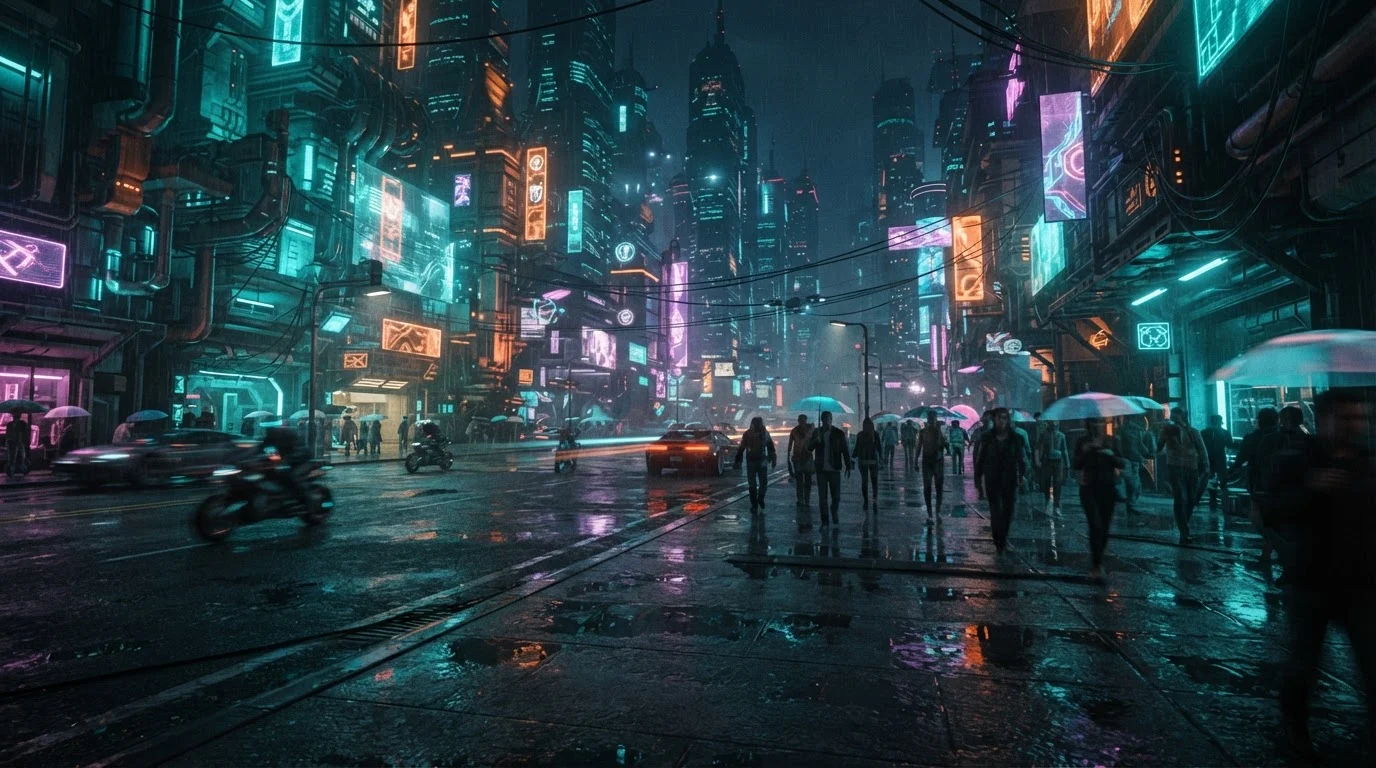
Beyond camera angles, professional video quality relies on strict control over lighting, color palette, and lens properties. Frame your visual style early in the prompt string. Describing light sources with phrases like "warm volumetric lighting," "dappled sunlight through foliage," or "soft key light" guides the render engine toward realistic contrast levels and shadow depth.
Maintaining visual character consistency across sequential clip generations remains a vital skill for storytellers. To keep subject features consistent across shots, try these tactics: * Use hyper-specific facial descriptors and locked outfit details (such as "a 30-year-old engineer with a faded navy jacket"). * Keep identical lighting parameters and artist style cues across all shot prompts. * Use static image-to-video seeds whenever possible to anchor subject features before applying motion prompts.
If you want to compare how different model architectures execute these styling techniques, read our breakdown on Synthesia AI Video Generator vs Sora, Veo 3.1, and Runway to see which engine fits your video production pipeline.
Step-by-Step Workflow: Refining Raw Clips into Pro Media
Generating raw clips is only half the journey. Converting raw outputs into polished, broadcast-ready assets requires a structured post-production pipeline:
- Draft Generation: Produce multiple 3 to 5-second candidate clips using precise movement syntax.
- Filtering and Upscaling: Discard renders with physics anomalies, then upscale selected clips to higher resolution output.
- Smart Editing and Sequencing: Import clips into modern ai video editing platforms to trim awkward start frames, normalize color profiles, and apply clean visual transitions.
- Audio Integration: Layer environmental sound effects, custom voiceovers, and dynamic score tracks to anchor the visual motion.
For creators looking for prompting strategies tailored specifically for audio-first content, check out our guide on Grok Imagine Video 1.5 Is Raising the Bar for practical prompt recipes.
Conclusion
Next-gen video models give creators unprecedented authority over camera angles, lighting atmosphere, and visual dynamics. By structuring your text prompts deliberately and running renders through an organized editing workflow, you can craft production-quality multimedia assets in a fraction of the traditional time.
Ready to test these prompting techniques on your own projects? Head over to MagicEditAI today and start your free trial to create your first edited image or AI-generated video in minutes!

 MagicEdit