Next-Gen AI Video Generator Guide: Master Camera Motion and Consistency Prompts
Table of Contents
- Next-Gen Capabilities in AI Video Generator Models
- Writing Precise Camera Motion Prompts
- Maintaining Character Consistency Across Clips
- Text-to-Video vs. Image-to-Video Workflows
- Polishing Raw AI Video Clips in MagicEditAI
- Pro-Tips for Artifact-Free Cinematic Renders
- Conclusion
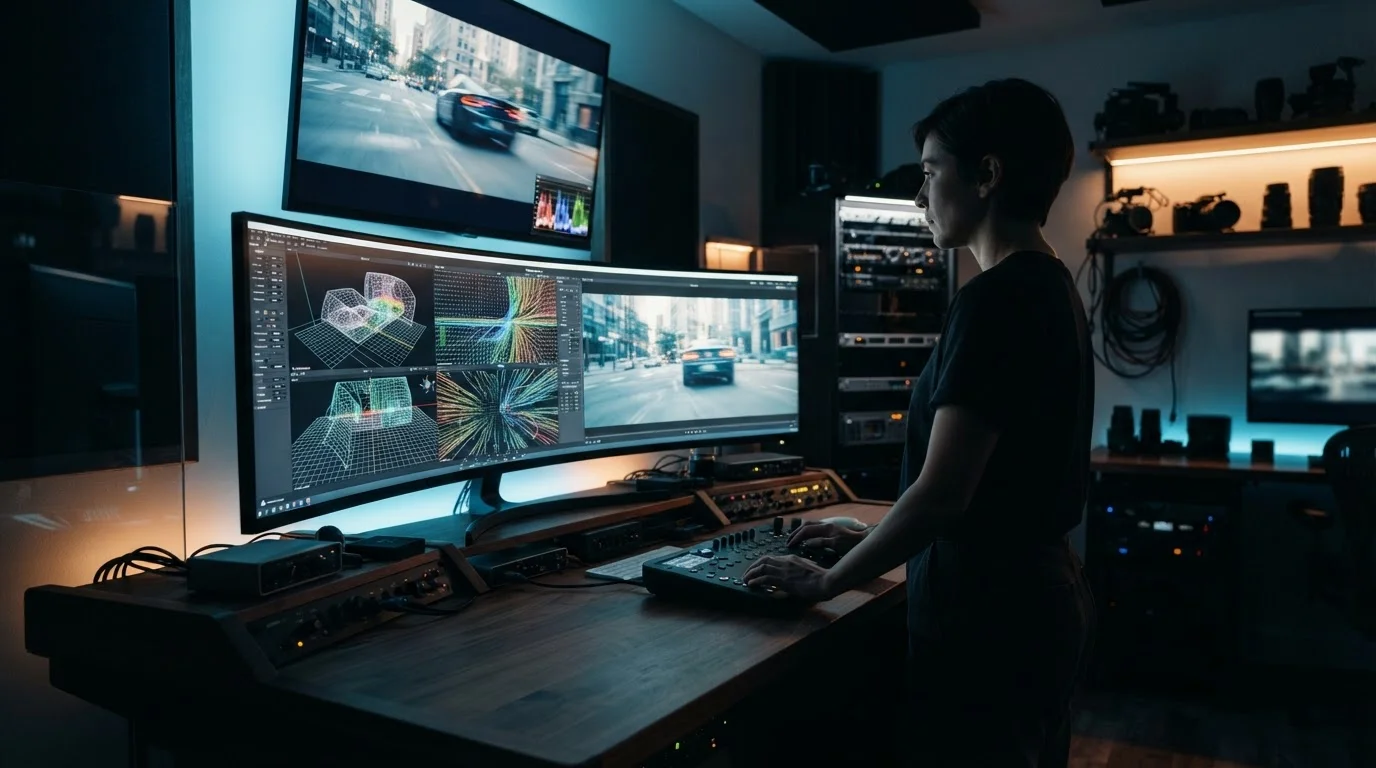
The widespread rollout of advanced motion control features across leading foundational models has completely transformed content creation. If you want to move beyond random, jittery clips, choosing a high-performing ai video generator gives you direct command over camera trajectories and subject movement. I have spent the last few weeks testing these new controls across major engines, and the jump in prompt adherence is night and day. Gone are the days when a pan left prompt resulted in an accidental morphing face. In this guide, we will break down how to command camera physics, maintain subject style across cuts, and assemble finished assets quickly.
Next-Gen Capabilities in AI Video Generator Models
The newest foundational models no longer treat motion as a lucky guess. Instead of generating frames frame-by-frame without spatial awareness, today's engines use directional vector maps and depth estimation. Models like Runway Gen-4.5, Kling 3.0, and Google Veo 3.1 understand real cinematic directions.
When you prompt for action now, the AI evaluates 3D space. That means foreground objects move faster than background elements during a lateral camera pass, just like real optical lenses behave. Understanding these underlying mechanics lets us write instructions that work with the AI's spatial model rather than fighting against it.
Writing Precise Camera Motion Prompts
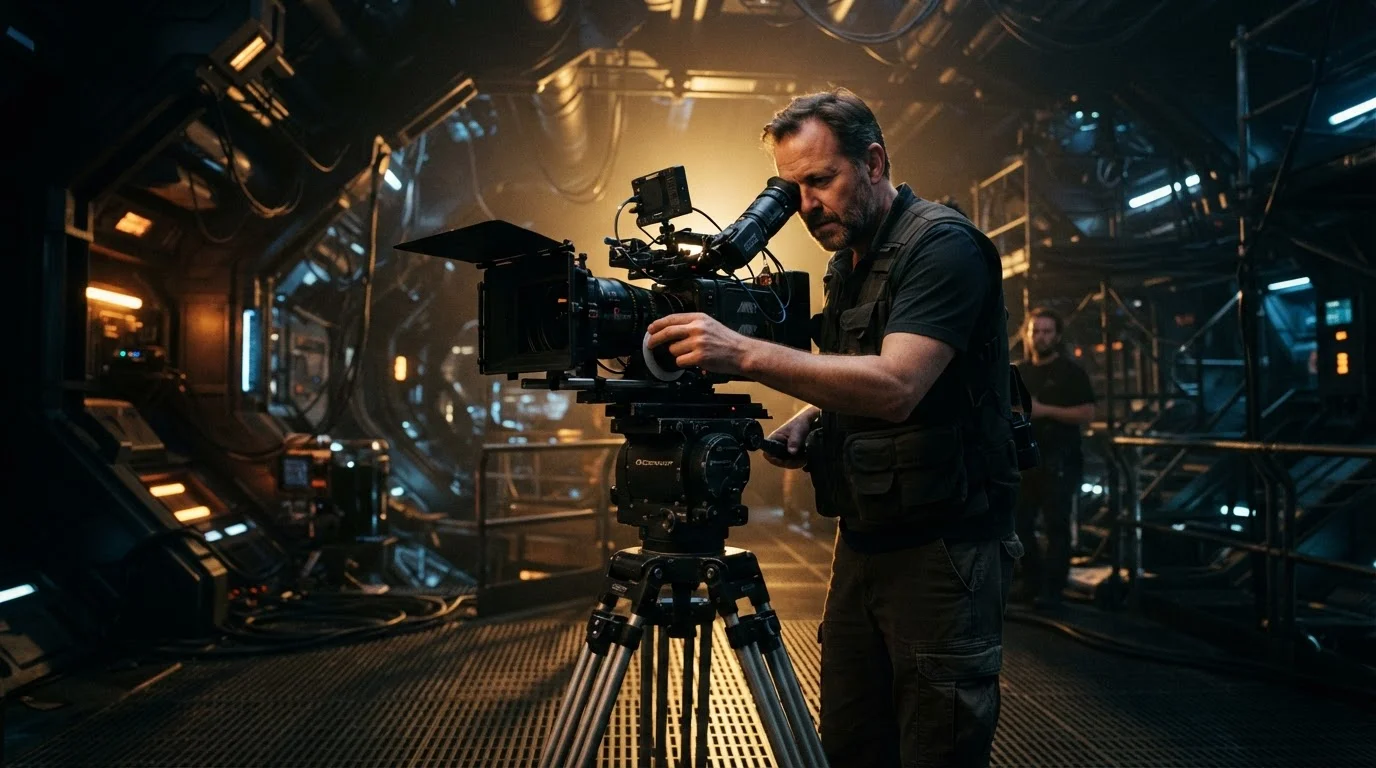
To get consistent camera work, ditch vague descriptions like "cool movie angle" or "moving shot." You need industry-standard film terms. Modern AI engines are trained on millions of labeled film shots, so cinematic language produces predictable results.
Here is a quick cheat sheet for effective camera motion prompts:
| Camera Term | What It Does | Prompt Example |
|---|---|---|
| Dolly Zoom (Vertigo Effect) | Background expands or shrinks while the subject remains fixed in frame size | "Slow dolly zoom into a detective standing on a rainy street corner, background distorts" |
| Rack Focus | Shifts focus from a sharp foreground element to a blurred background element | "Rack focus from a wet rose petal in the foreground to a distant neon sign" |
| Pan / Tilt | Sweeps horizontally (pan) or vertically (tilt) from a fixed pivot point | "Slow pan right across an abandoned industrial complex, 35mm lens, golden hour" |
| Truck / Pedestal | Moves the entire camera physically left/right (truck) or up/down (pedestal) | "Pedestal up from a musician's shoes to their face as they hit the main chorus" |
When constructing your prompt, place the camera movement command right after your main subject description. This hierarchy prevents the model from mistaking camera directions for physical movements of the characters.
Maintaining Character Consistency Across Clips
Achieving character consistency ai video output used to require complex manual editing. Now, multi-shot workflows rely on seed continuity, reference image anchoring, and structured subject descriptions.
To keep your subject recognizable across sequential clips, follow three core rules:
- Define a persistent visual anchor tag (for example, "30-year-old female pilot with a scar on her left cheek, wearing a leather jacket").
- Lock the face using an image reference input before generating dynamic action cuts.
- Keep lighting descriptions consistent across sequential prompts so color grading does not shift wildly between shots.
By keeping these anchors identical across scene prompts, you can generate an entire short film where the main character stays recognizable across close-ups and wide tracking shots.
Text-to-Video vs. Image-to-Video Workflows
Creators often ask whether to start from text or an existing image. Both methods have distinct advantages depending on your goal.
In a pure text to video prompt guide scenario, starting with text grants the model maximum freedom to construct dynamic physics and rapid motion. It works best for action scenes or abstract transitions. But if you require strict visual fidelity, starting with an image keyframe offers superior control over framing, wardrobe, and environment lighting.
Using image-to-video for cinematic ai video generation lets you lock down your exact art style in an initial render, then use motion prompts purely to dictate movement. This two-step process cuts generation waste in half.
Polishing Raw AI Video Clips in MagicEditAI
Generating individual clips is only half the battle. You still need to stitch, trim, and polish raw clips into a finished piece. This is where MagicEditAI shines by bringing generation, editing, audio sync, and color consistency under one roof.
Instead of jumping between four different apps, you can upload your raw renders directly into MagicEditAI's workspace. If a clip has minor motion flickering, you can trim the tail, smooth out visual transitions, and apply AI voiceovers or background music without losing quality. If you want to refine prompt phrasing for faster iteration, explore our list of Gemini Omni prompts to build better video clips.
Pro-Tips for Artifact-Free Cinematic Renders
Motion artifacts happen when prompt instructions clash. If you command a character to "run fast" while asking for a "slow static macro close-up," the AI gets confused and warps the geometry.
To keep your output clean: - Avoid stacking conflicting verbs in your ai video prompts. - Specify lens focal length (e.g., 24mm wide angle or 85mm portrait) to lock the perspective. - Use simple spatial cues like "moving left to right" instead of complex spiraling pathways. - Limit each generated clip to one primary subject action and one camera movement.
Conclusion
Mastering modern AI video tools comes down to precise vocabulary and structured workflows. By combining specific camera commands, locked reference assets, and integrated post-production tools, you can produce cinematic video clips that look intentionally directed rather than randomly generated.
Head over to MagicEditAI and start your free trial today to create your first edited image or AI-generated video.

 MagicEdit