Next-Gen AI Video Generators: How to Use New Motion Models and Camera Prompts for Cinematic Creation
Recent breakthroughs in next-generation video diffusion models have changed what we can create on a laptop. With the recent release of advanced motion tools featuring precise camera trajectory control and enhanced image-to-video capabilities, picking up an ai video generator feels less like rolling dice and more like directing on a live studio set. We no longer have to settle for random morphing artifacts or jittery transitions.
In this guide, I will show you how to take full advantage of these motion models, write pinpoint directional prompts, and turn raw renders into studio-ready content.
Modern Generative Video Models and Motion Upgrades
The newest generative video models solve the biggest headache creators faced in early iterations: temporal consistency. Older tools struggled to keep human hands, background architecture, or lighting stable past two seconds. Current diffusion architectures process spatial details and frame-to-frame motion paths simultaneously. This creates fluid physics, natural cloth drapes, and believable lighting changes across your entire output.
When building shot sequences, you can choose between text to video prompting and image-to-video workflows:
- Text to video prompting: Best for quick prototyping or abstract visual effects. You describe the scene from scratch, letting the engine determine spatial composition, lighting, and movement simultaneously.
- Image-to-video workflows: Ideal when you require tight control over brand assets, key characters, or architectural layouts. You supply a high-resolution base image and use prompts to command how elements move within that specific frame.
If you want a deeper breakdown on evaluating model specs and rights management, check out our guide on choosing an AI Video Generator.
Mastering AI Camera Controls and Motion Prompts
To make your videos look like actual cinema rather than stock footage, you must speak the language of a cinematographer. Modern platforms interpret directional commands with surprising accuracy when structured correctly in cinematic ai prompts.
Instead of writing "camera moves around character," specify direction, speed, and focal behavior. Here is a breakdown of essential ai camera controls and prompt syntax you can apply right away:
| Movement Type | Prompt Syntax Example | Visual Result |
|---|---|---|
| Smooth Pan | Slow pan right across neon alleyway, cinematic 35mm, 24fps |
Horizontal sweep revealing environment details without distortion. |
| Crane / Tilt | Dynamic low-angle tilt up from rain-slick pavement to dramatic sky |
Vertical sweep adding scale, tension, and epic perspective. |
| Tracking Shot | Smooth tracking shot following runner from side angle, shallow depth of field |
Camera travels parallel to subject, maintaining distance and subject focus. |
| Push-In Zoom | Slow push-in zoom on subject eyes, subtle ambient lens flare |
Draws emotional focus inward without warping surrounding geometry. |
| Orbit Shot | 360-degree slow orbit around heroic statue, atmospheric fog, dusk lighting |
Full rotation around target while maintaining subject centered. |
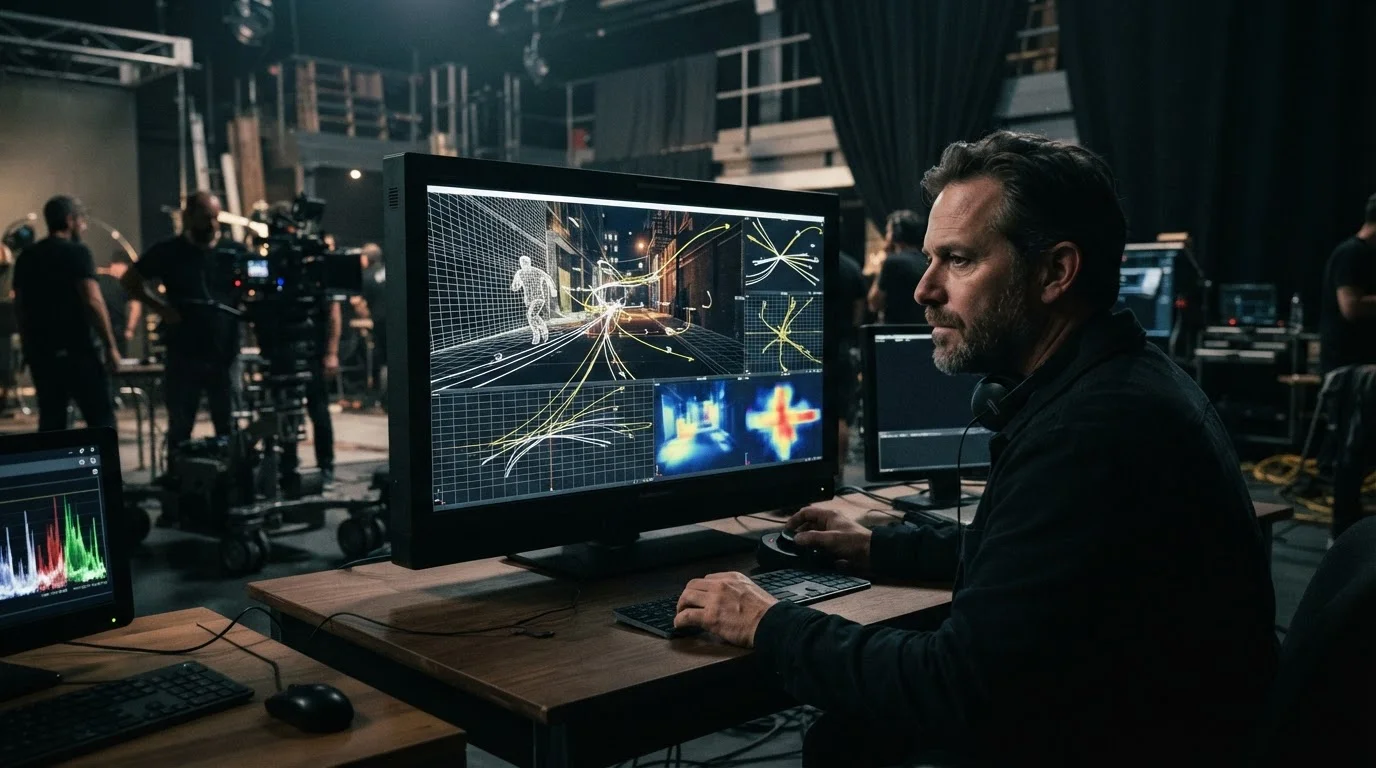
To get realistic physics, couple your camera commands with environment responses. For instance: "Slow push-in zoom on character standing on ocean cliff, dramatic rim lighting, ocean spray reacting dynamically to high wind." This tells the model how light and particles interact with motion.
Step-by-Step Workflow for Consistent Multi-Shot Scenes
Creating a multi-shot scene requires planning to prevent characters or environments from shifting between cuts. If you want to master character consistency across multiple angles, our Next-Gen AI Video Generator Guide: Master Camera Motion and Consistency Prompts dives into specialized seed control techniques.
Here is our battle-tested process for multi-shot generation:
- Establish the Reference Frame: Generate a clean image anchor for your character or subject. Keep lighting neutral and background elements distinct.
- Lock Scene Attributes: Use consistent descriptors across prompts. Repeat key tags like
golden hour lighting,matte blue jacket, andfilm grainin every shot command. - Vary Angles Intentionally: Move from a wide establishing shot (
wide tracking shot) to a tight close-up (medium push-in). Avoid subtle angle changes, which confuse temporal diffusion layers. - Use Multimodal Generation: Input your initial rendered frame as the image seed for your next angle shot. This anchors colors and facial structures across scene cuts.
Extending Short Clips and Final Audio Integration
Most raw outputs from an ai video generator cap out at four to eight seconds. To build full narrative scenes, use temporal extension features. Take the final frame of your generated clip, pass it back into an image-to-video workflow, and append a continuous camera movement prompt. This keeps motion vectors aligned across extended timelines.
Once you have your video renders ready, raw visual clips are only half the battle. High-grade production requires audio synchronization. Inside MagicEditAI, you can take your generated clips and instantly complete your video editing with ai.
We bring multimodal video generation, custom voice cloning, dynamic sound effects, and tailored background music together in one workspace. Instead of bouncing between three different software subscriptions, you can layer realistic voiceovers over your camera moves and match beat drops to visual cuts in minutes.
Conclusion
The latest advances in video diffusion models give creators direct control over virtual camera gear and temporal stability. By combining specific motion commands, image-to-video seeds, and smart editing workflows, you can produce cinematic video content in a fraction of the time.
Ready to transform your creative workflow? Head over to MagicEditAI to start your free trial today and create your first edited image or AI-generated video.
 MagicEdit