Synthesia AI Video Generator Prompt Guide: Create Avatar Videos, Voiceovers, B-Roll, and Music in One AI Workflow
Table of Contents
- Why Creators Search for Synthesia-Style AI Avatar Videos
- The Prompt Framework I Use for Avatar-Style Videos
- Ready-to-Use Generative AI Video Prompts
- Go Beyond the Talking Head: Images, B-Roll, Voice, and Music
- Synthesia Questions Creators Usually Ask
- Single-Purpose Avatar Tool vs Full MagicEditAI Workflow
- Production Checklist for a Complete AI Video
- Prompt Mistakes to Avoid
- Conclusion: Copy This MagicEditAI Prompt Template
Synthesia’s help documentation was recently updated to emphasize browser-based business video creation, AI avatars and voices, translation and dubbing, assistant features, and personal avatar workflows from a photo or video. That makes 2026 a smart moment to rethink what creators actually want when they search for synthesia ai video generator: fast presenter-style videos without booking a studio, recording a voiceover, or stitching together five separate tools. Synthesia positions itself around browser video creation with avatars, voices, templates, brand elements, translation, dubbing, and interactive features. (help.synthesia.io)
Why Creators Search for Synthesia-Style AI Avatar Videos
When someone searches for “synthesia ai video generator,” they usually aren’t just looking for one tool. They’re trying to solve a production problem.
They want:
- A professional presenter on screen
- A polished script without filming
- Voiceover that matches the brand
- Supporting visuals, not just a talking head
- Faster localization for multiple audiences
- Exports for YouTube, courses, product pages, Shorts, Reels, and TikTok
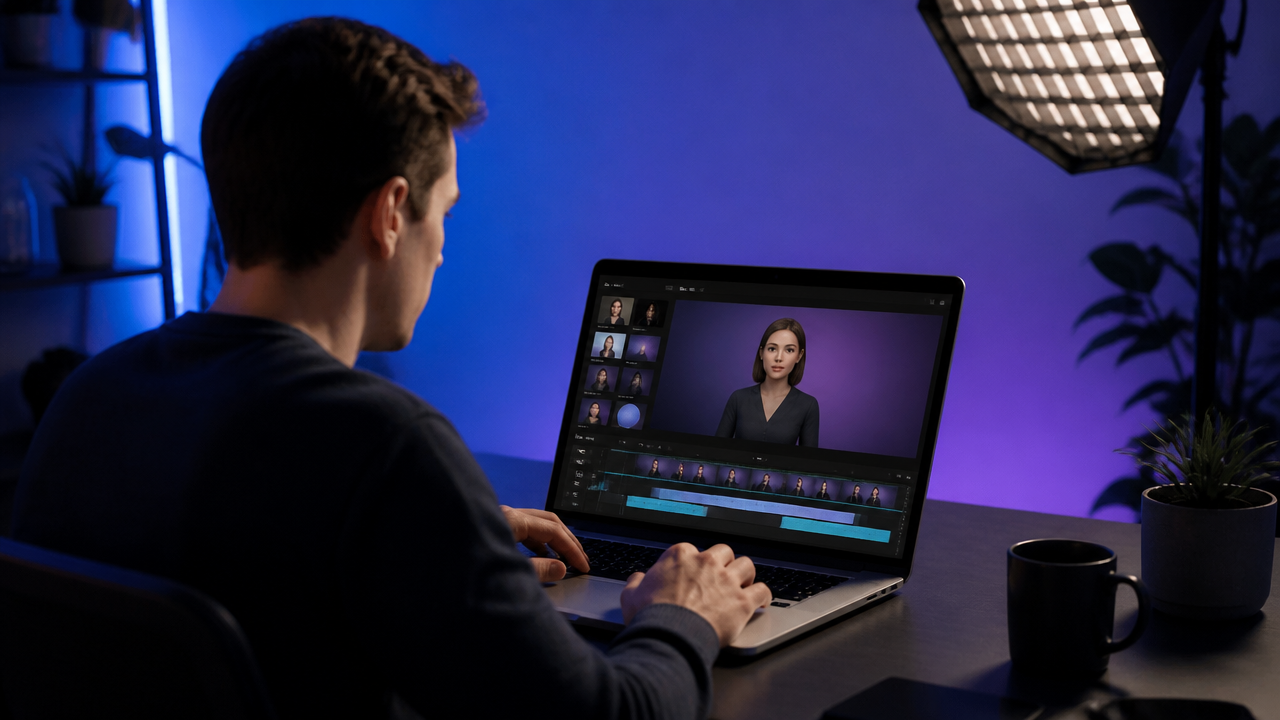
That search intent matters because a basic AI avatar video is only one piece of the workflow. In MagicEditAI, I’d treat the avatar clip as the center of a larger content creation workflow: script, AI avatar video, AI image editor work, voice cloning or selected voiceover, B-roll, thumbnail, captions, and AI music generation.
The Prompt Framework I Use for Avatar-Style Videos
A strong prompt gives the AI video generator context, pacing, visuals, and output rules. Here’s my reusable framework:
| Prompt Element | What to Include | Example |
|---|---|---|
| Audience | Who the video is for | “New ecommerce founders” |
| Topic | The core message | “How to improve product page conversions” |
| Tone | Delivery style | “Confident, helpful, concise” |
| Presenter persona | Who appears on screen | “Friendly product strategist in a modern studio” |
| Scene structure | Intro, points, transitions, CTA | “5 scenes, 20 seconds each” |
| Visual style | Backgrounds, overlays, B-roll | “Clean SaaS demo visuals and product close-ups” |
| CTA | What viewers should do | “Start a free trial” |
| Output format | Aspect ratio, length, platform | “9:16, 45 seconds, TikTok-ready” |
Use this structure for generative AI video prompts whenever you want repeatable quality. It keeps your creative direction specific without making the prompt bloated.
Ready-to-Use Generative AI Video Prompts
Use these as starting points inside MagicEditAI, then adjust the brand, offer, and target audience.
- YouTube explainer prompt
“Create a 4-minute AI avatar video for beginner creators explaining how to turn one blog post into five short videos. Audience: solo creators and small teams. Tone: professional, energetic, and practical. Presenter: friendly media strategist in a clean studio. Structure: hook, 3-step process, example workflow, recap, CTA. Add B-roll ideas for laptop editing, social media previews, and content calendar planning. Output: 16:9 YouTube format with captions.”
- Product demo prompt
“Generate a 90-second presenter-led product demo for a design tool. Audience: freelance designers. Tone: confident and clear. Presenter: modern creative director. Scene structure: problem, product walkthrough, top 3 features, before-and-after result, CTA. Include prompts for AI-edited product screenshots, background replacement, and close-up interface B-roll. Output: 16:9 and 1:1 versions.”
- Online course lesson prompt
“Create a 6-minute AI avatar video lesson about building a personal brand with short-form video. Audience: online course students. Tone: instructional and encouraging. Presenter: experienced creator coach. Break the lesson into 5 sections with short recap cards. Add scene cards, simple visual examples, and accessibility captions. Output: 16:9 course module.”
- Social ad prompt
“Create a 30-second AI avatar video ad for a productivity app. Audience: busy founders. Tone: direct, upbeat, and benefit-focused. Presenter: startup advisor in a bright workspace. Structure: pain point in 5 seconds, product benefit, proof-style example, CTA. Add quick B-roll concepts for calendar chaos, clean dashboard, and mobile notification. Output: 9:16 for Reels, Shorts, and TikTok.”
- Tutorial prompt
“Generate a 3-minute tutorial video explaining how to remove a distracting background from a product photo and turn it into a video asset. Audience: ecommerce creators. Tone: precise and friendly. Presenter: visual content expert. Include screen-style scene directions, before-and-after image edits, thumbnail concept, and final export checklist. Output: 16:9 and 9:16.”
- Multilingual brand video prompt
“Create a 60-second AI avatar video introducing a global brand campaign. Audience: English, Spanish, and French-speaking customers. Tone: premium, warm, and simple. Presenter: brand representative with neutral wardrobe and clean background. Structure: brand promise, customer benefit, feature highlight, CTA. Prepare localized voiceover versions and note where captions should be adapted, not translated word-for-word.”
Go Beyond the Talking Head: Images, B-Roll, Voice, and Music
The best AI avatar video feels produced, not pasted together. That’s where MagicEditAI becomes useful as more than an avatar generator.
I’d build supporting media like this:
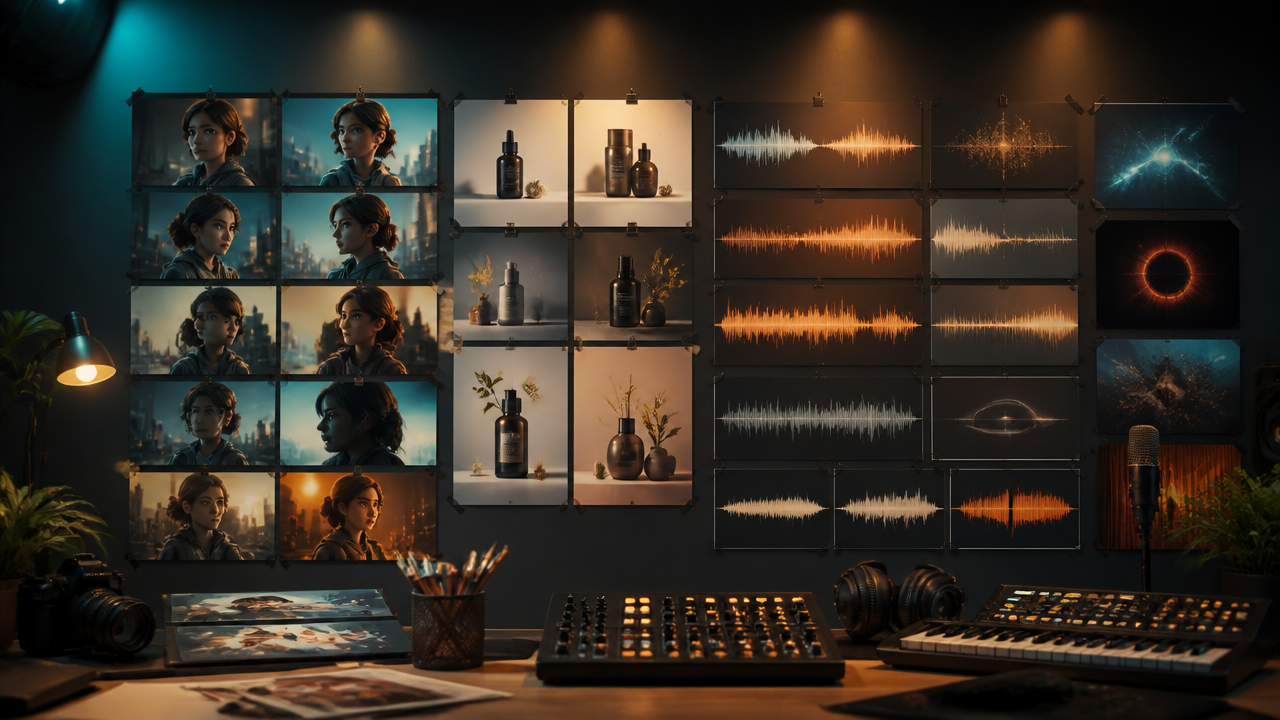
- Product shots: Use an AI image editor to clean backgrounds, improve lighting, or create polished ecommerce visuals.
- Background replacements: Match the presenter to the brand mood, such as a studio, office, classroom, or product environment.
- Thumbnails: Generate 2-3 thumbnail variations with clear composition and emotional contrast.
- Scene cards: Create title cards, transition visuals, or recap frames.
- B-roll concepts: Prompt short clips like hands using a laptop, product close-ups, packaging shots, or abstract motion backgrounds.
- Voice and music: Add voice cloning only when you have clear permission, then pair the narration with AI music generation that supports the pacing without overpowering speech.
Synthesia’s personal avatar documentation describes photo-based personal avatars, optional cloned voice setup, consent recording, lip-sync behavior, outfit and background customization, and avatar B-roll support, so consent and identity control should be part of your creative process from the start. (docs.synthesia.io)
Synthesia Questions Creators Usually Ask
Is Synthesia AI video free?
Synthesia’s current pricing page lists a Basic plan at $0 per month with no credit card required, and it describes usage as up to 10 minutes of video per month or 25 AI-generated video assets. (synthesia.io) If you’re producing client work, ads, or ongoing education content, check the live plan details before committing because free tiers can change quickly.
Is there a 100% free AI video maker?
There are AI video tools with free plans, but “100% free” usually means limits: watermarks, short exports, fewer avatars, lower credits, or restricted commercial features. For serious production, I’d evaluate the full workflow cost, including image editing, voiceover, music, captions, and revisions.
How much does Synthesia AI cost?
As of the pricing page I checked, Synthesia lists Basic at $0/month, Starter at $29/month billed monthly, Creator at $89/month billed monthly, and Enterprise with custom pricing. The page also notes annual pricing starts from $18/month. (synthesia.io)
How long can Synthesia videos be?
Synthesia’s pricing page describes usage by monthly video minutes: Basic and Starter list 10 minutes of video per month, Creator lists 30 minutes per month, and Enterprise lists unlimited video minutes. (synthesia.io) For creators, that means you should script tightly and create platform-specific cuts instead of generating one long video for every channel.
Single-Purpose Avatar Tool vs Full MagicEditAI Workflow
A single-purpose avatar platform is great when the whole job is “turn this script into a presenter video.” But creators usually need more than that.
| Workflow Need | Avatar-Only Tool | MagicEditAI-Style Workflow |
|---|---|---|
| Presenter video | Strong fit | Strong fit |
| Image editing | Often limited or separate | Built into the workflow |
| Voiceover options | Usually available | Create or refine voiceovers alongside video |
| Voice cloning | Plan-dependent | Useful when consent and brand rules are clear |
| B-roll creation | May be limited | Prompt visuals, clips, and supporting scenes |
| Music bed | Often separate | Add AI music generation in the same production flow |
| Social variations | Manual edits may pile up | Build multiple exports from one concept |
If you want a broader view of how these tools fit together, I’d also read MagicEditAI’s guide to the AI Video Generator, which covers quality, rights, prompting, and workflow planning in more detail.
Production Checklist for a Complete AI Video
Here’s the practical workflow I’d follow for a creator or digital artist:
- Write the script: Keep sentences short enough for natural delivery.
- Generate the presenter video: Choose an avatar style, framing, background, and pace.
- Edit image assets: Polish product shots, replace backgrounds, and create thumbnail options.
- Clone or select a voice: Use voice cloning only with explicit consent.
- Add B-roll: Use visual prompts for product scenes, tutorial moments, or lifestyle clips.
- Create an AI music bed: Keep it subtle under dialogue.
- Add captions: Include accessibility-friendly captions and safe title margins.
- Create short-form variations: Cut 9:16 versions for Shorts, Reels, and TikTok.
- Export by platform: Adjust aspect ratio, duration, file size, and caption style.
For more Synthesia-style workflow ideas, MagicEditAI has a related guide on turning AI images into professional videos with prompts.
Prompt Mistakes to Avoid
The fastest way to get weak output is to ask for “a professional video about my product” and hope the model fills in the gaps. Be more direct.
Avoid these common mistakes:
- Vague audience: “Business owners” is too broad. “Solo Shopify founders selling skincare” is better.
- No scene direction: Tell the model when to show the avatar, product, screen, or B-roll.
- Overlong scripts: Avatar videos work best when the delivery feels intentional, not rushed.
- Mismatched voice tone: A luxury product shouldn’t sound like a flash sale ad.
- Weak visual prompts: Give lighting, setting, camera angle, and mood.
- No captions or accessibility: Always prompt for captions, readable pacing, and safe framing.
- Ignoring consent: Never clone a voice, face, or likeness without permission.
Conclusion: Copy This MagicEditAI Prompt Template
The synthesia ai video generator search trend points to a bigger creator need: fast, professional multimedia production without traditional filming. Avatar video is the hook, but the finished asset needs script structure, edited images, B-roll, voice, captions, music, and platform-specific exports. That’s the workflow MagicEditAI is built to support.
Copy this template into MagicEditAI:
Create a complete AI video workflow for:
Audience:
Topic:
Goal:
Tone:
Presenter persona:
Avatar style:
Voice style:
Language or localization needs:
Video length:
Platform and aspect ratio:

Scene structure:
1. Hook:
2. Problem:
3. Main teaching or product point:
4. Supporting example:
5. Recap:
6. CTA:

Generate:
- Presenter-led AI avatar video
- Polished script with natural spoken pacing
- AI-edited image asset ideas
- Background replacement suggestions
- Thumbnail concepts
- B-roll prompts
- Voiceover direction or approved voice cloning notes
- AI music generation prompt
- Caption and accessibility instructions
- Export versions for YouTube, Shorts, Reels, and TikTok

Safety notes:
Use only approved brand assets, licensed visuals, and voices or likenesses with clear consent.
Ready to move from prompt to production? Try the free trial on MagicEditAI to create your first edited image or AI-generated video.

 MagicEdit