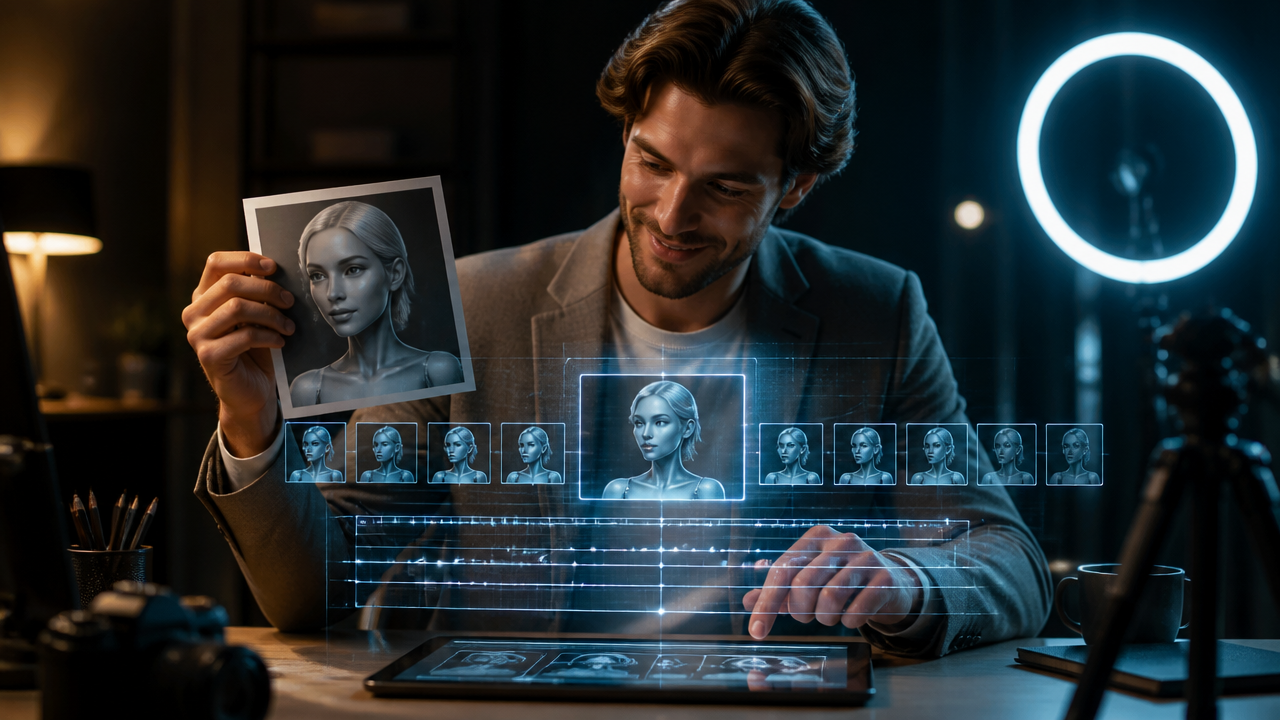
Synthesia AI Video Generator Workflows: Turn AI Images into Professional Videos with Prompts
Table of Contents
- Why Great AI Images Still Need a Video Workflow
- The Image-to-Video Prompt Formula I Use
- Edit the Image Before You Animate It
- Workflow Ideas for Creators and Brands
- Avatars, Voiceovers, and Music That Match Your Brand
- Stitch the Full Workflow Together in MagicEditAI
- Troubleshooting Common AI Video Problems
- Conclusion
Adobe’s recent Firefly and Photoshop updates point to where creative production is heading: prompt-based edits, Generative Fill, Generative Upscale, and more model choice inside one workflow. Adobe’s own Generative Fill documentation describes prompt-based object adding and removal, while newer Firefly updates emphasize image editing, video, and model selection in a shared creative pipeline. (helpx.adobe.com)
That shift matters if you’re using the synthesia ai video generator or any image to video AI tool. A polished AI image is only the starting frame. To become usable content, it still needs motion, narration, pacing, music, captions, and the right export format.
Why Great AI Images Still Need a Video Workflow
I see this all the time with creators: they generate a beautiful product render, portrait, or campaign visual, then wonder why it doesn’t perform as a Reel, Short, landing-page hero, or training clip.
The reason is simple. Static quality doesn’t equal video quality.
A strong image needs:
- Motion that guides the eye without distracting from the message.
- Narration that explains the offer, concept, or lesson.
- Pacing that fits the platform, such as fast cuts for Shorts or calmer timing for course modules.
- Music that supports the mood without fighting the voiceover.
- Captions for silent viewing and accessibility.
- Platform formatting, including 9:16, 1:1, 16:9, thumbnails, and safe zones.
This is where multimedia content creation gets exciting. Instead of treating image generation, editing, avatars, AI voiceover, and AI music generation as separate jobs, you can build one repeatable workflow.
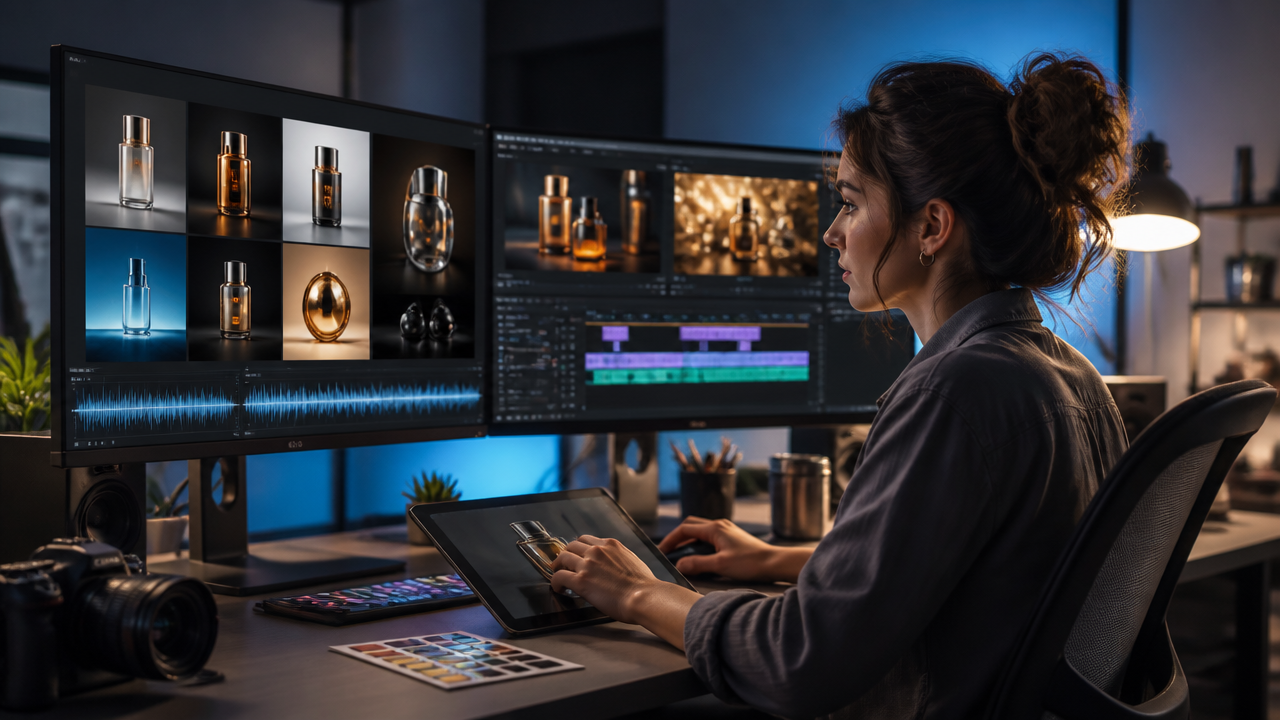
The Image-to-Video Prompt Formula I Use
When I turn an AI-generated or edited image into motion, I don’t start with “make this cinematic.” That’s too vague. I use a structured image-to-video prompt formula:
| Prompt Element | What to Specify | Example |
|---|---|---|
| Subject | Main object, person, avatar, or scene | “A matte black skincare bottle on a marble counter” |
| Motion | What moves in the frame | “Soft steam rises, light reflections shift slowly” |
| Camera move | Pan, push-in, orbit, tilt, static | “Slow push-in from medium shot to close-up” |
| Lighting | Mood, direction, intensity | “Warm side light with gentle highlights” |
| Background | Setting and depth | “Minimal spa bathroom, blurred background” |
| Brand style | Colors, tone, visual personality | “Premium, clean, muted beige and charcoal palette” |
| Aspect ratio | Platform format | “9:16 for Instagram Reels” |
| Duration | Clip length | “6 seconds” |
| Emotional tone | Feeling to create | “Calm, luxurious, trustworthy” |
Here’s a complete prompt:
Animate this product image into a 6-second vertical AI product video. Keep the bottle shape and label consistent. Add a slow camera push-in, soft steam movement, warm side lighting, and subtle reflections on the marble surface. Background should stay minimal and premium. Use a calm, spa-like mood for a luxury skincare brand. Format 9:16.
The synthesia ai video generator is especially useful when the visual needs a presenter, avatar, or guided narration. For a broader comparison of where different tools fit, I’d point creators to MagicEditAI’s guide to the AI Video Generator, which covers workflow fit, prompting, quality checks, and rights considerations.
Edit the Image Before You Animate It
Before I generate video, I clean up the image. This step prevents most quality problems later.
Use an AI image editor to:
-
Remove distractions
Delete messy background objects, extra fingers, bad shadows, random reflections, or inconsistent props. -
Extend backgrounds
Use generative fill prompts to create breathing room for 9:16, 1:1, or 16:9 crops. This helps avoid awkward zooms. -
Create alternate crops
Make one vertical version for Reels, one square version for feeds, and one horizontal version for landing pages. -
Add product context
Place the item in a realistic setting: kitchen counter, desk, studio shelf, gym bag, course dashboard, or packaging scene. -
Prepare thumbnails
Create a sharp, high-contrast frame before generating motion. Video thumbnails still need to stop the scroll.
Example generative fill prompts:
- “Extend the background upward with a soft beige studio wall and natural shadows.”
- “Remove the cup and cables from the desk, keep the lighting realistic.”
- “Add a subtle product reflection beneath the bottle, clean commercial photography style.”
Workflow Ideas for Creators and Brands
Different platforms need different pacing. I don’t use the same prompt for a course module and an ad creative. The message, rhythm, and export format all change.
| Use Case | Best Format | Workflow |
|---|---|---|
| Instagram Reels | 9:16, 6-15 sec | Product image, motion prompt, upbeat music, captions, CTA frame |
| YouTube Shorts | 9:16, 15-30 sec | Hook image, avatar intro, 3 quick points, branded outro |
| Course modules | 16:9, 1-3 min | Slide visuals, avatar explanation, calm voiceover, light background music |
| Portfolio pieces | 16:9 or 4:5 | Before/after image edits, smooth camera moves, cinematic pacing |
| Landing-page videos | 16:9, 10-30 sec | Hero product visual, benefit-led narration, subtle soundtrack |
| Ad variants | 9:16, 1:1, 16:9 | Same core product visual, 3 hooks, 3 captions, 3 music moods |
For AI ad creative, I like producing variants around one visual. Keep the product consistent, then test different openings:
- “Stop wasting hours editing product visuals.”
- “Turn one image into five campaign videos.”
- “Build a product video before your coffee gets cold.”
If you’re comparing avatar-led workflows with newer promptable video systems, MagicEditAI also has a useful breakdown of Synthesia AI Video Generator vs Sora, Veo, and Runway.
Avatars, Voiceovers, and Music That Match Your Brand
The synthesia ai video generator works best when the avatar feels like part of the brand, not a pasted-on presenter. Synthesia’s help materials describe prompt-based customization for avatar outfits, backgrounds, and B-roll, including text prompts for avatar actions and branded settings. (help.synthesia.io)
For brand consistency, I recommend building a small creative kit:
- 2 avatar styles: one for education, one for promotion.
- 2 voice options: calm expert and energetic presenter.
- 3 music moods: premium, upbeat, and focused.
- 3 visual templates: product, tutorial, and announcement.
Voice cloning can help if you have clear permission, documented consent, and a legitimate use case. Don’t clone a client, employee, influencer, or customer without explicit approval. The same goes for music. AI music generation is powerful, but the safest brand workflow is to use original generated tracks, licensed assets, or platform-approved audio.
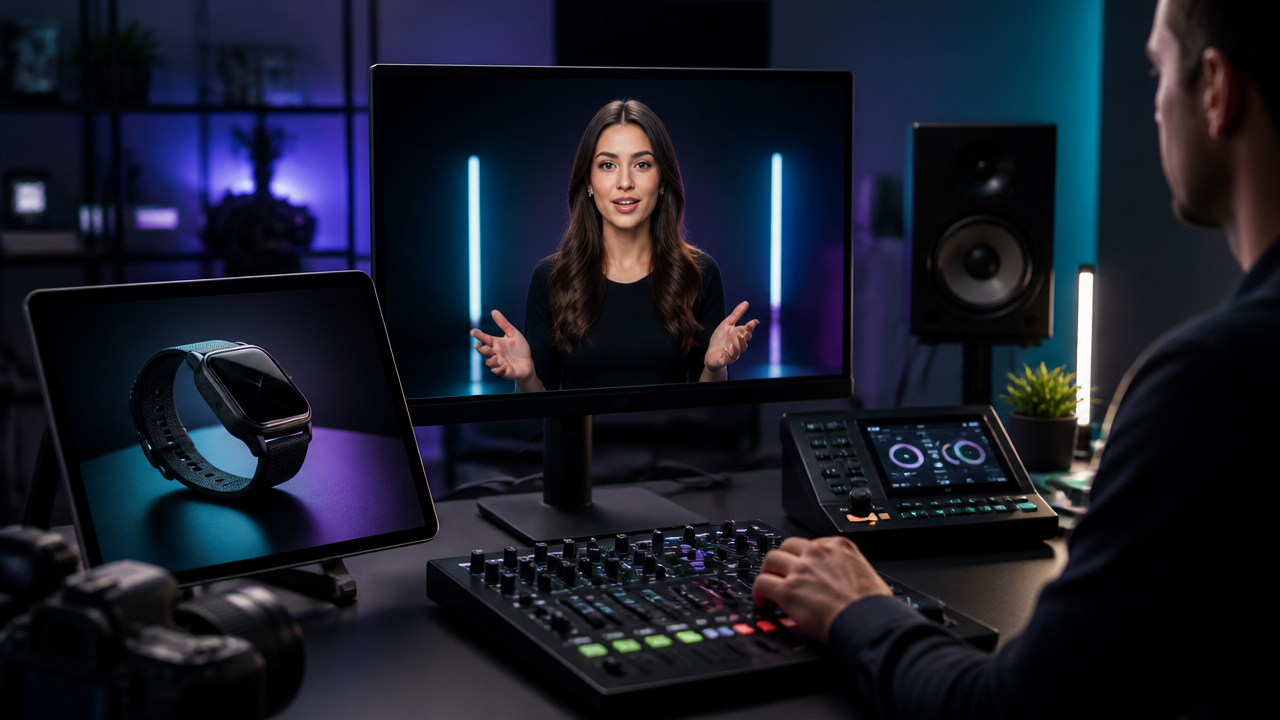
Stitch the Full Workflow Together in MagicEditAI
MagicEditAI is built for creators who don’t want to jump between five different tools just to finish one asset. Here’s the workflow I’d use:
-
Generate the image
Start with a product render, avatar background, lifestyle shot, or concept frame. -
Edit the image
Remove distractions, use generative fill prompts, extend the canvas, and prepare platform crops. -
Create the video
Use image to video AI prompts for camera movement, atmosphere, and motion. -
Add voiceover
Generate an AI voiceover that matches the tone: polished, friendly, educational, or sales-focused. -
Generate the soundtrack
Create music that supports the voice, then lower it under narration. -
Export
Save versions for Reels, Shorts, ads, landing pages, and course platforms.
This is the practical path from one image to a full campaign asset.
Troubleshooting Common AI Video Problems
AI video is fast, but you still need quality control. I always check the final render before publishing.
| Problem | Likely Cause | Fix |
|---|---|---|
| Flicker | Too much motion or unstable lighting | Ask for “subtle movement” and “consistent lighting” |
| Inconsistent product details | Model is reinterpreting the object | Add “keep logo, shape, label, and proportions unchanged” |
| Warped logos | Text and marks are being regenerated | Use a clean source image, reduce camera movement, add logo manually after export |
| Unnatural camera movement | Prompt is too broad | Specify one move: “slow push-in” or “gentle left-to-right pan” |
| Music overpowers narration | Mix is too loud | Lower soundtrack volume and choose fewer high-frequency instruments |
| Avatar feels disconnected | Background and tone don’t match | Match outfit, scene, voice, and script to the same audience |
My best advice: change one variable at a time. If you alter the image, camera move, music, and script all at once, you won’t know what improved the final result.
Conclusion
The fastest creator workflows now start with a strong image and build outward: edit it, animate it, add an avatar, generate voiceover, score it with music, then export for each platform. The synthesia ai video generator can be a smart part of that process when you need avatar-led explanation, training, or brand narration. But the real win is the workflow around it.
When you combine an AI image editor, image to video AI, generative fill prompts, AI voiceover, and AI music generation, one product visual can become a Reel, Short, ad, course clip, landing-page video, and portfolio piece.
Ready to create faster? Try the free trial on MagicEditAI to create your first edited image or AI-generated video.

 MagicEdit