The New AI Video Stack: Synthesia-Style Avatars, Native Audio, Voice Cloning, and AI Music Generation
- Why Audio Is Now the Quality Layer
- The New AI Video Stack by Role
- Build the Sound Plan Before the Scene
- AI Audio Prompt Templates You Can Reuse
- Workflow Examples for Real Creator Projects
- Common Audio Mistakes to Avoid
- MagicEditAI Production Checklist
- Responsible Use: Voices, Music, and Labels
- Conclusion
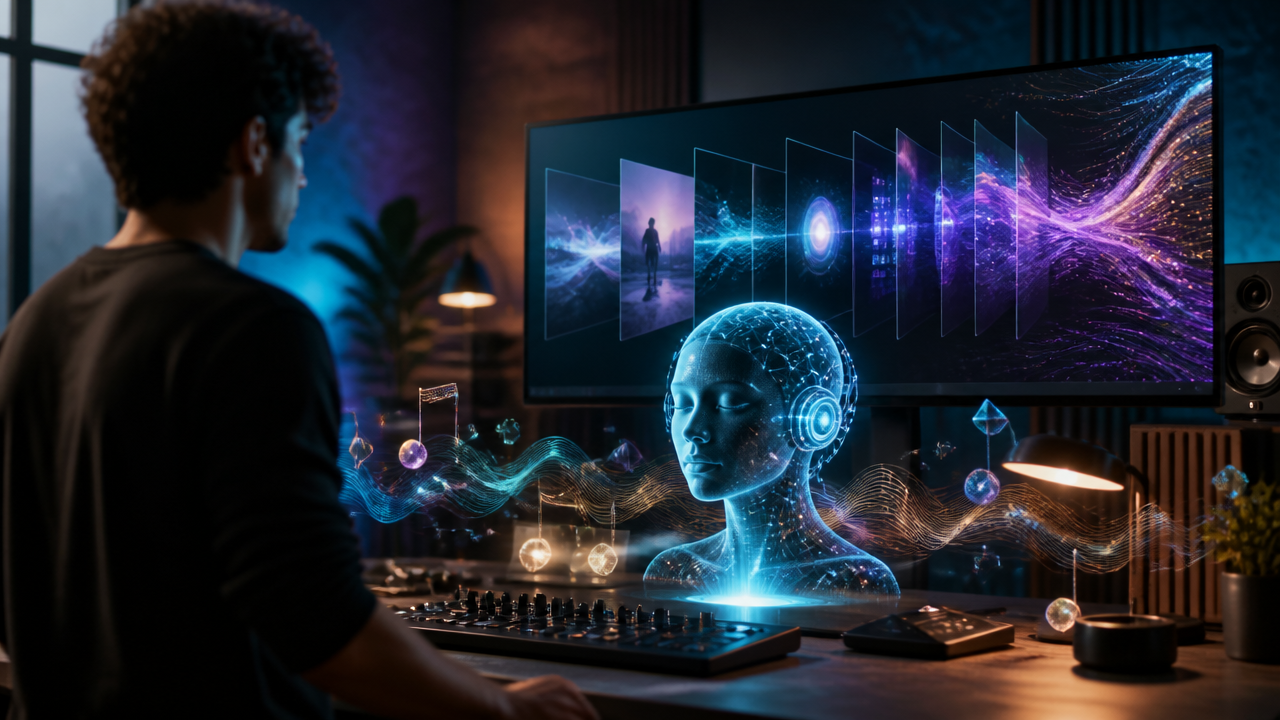
Google’s May 20, 2025 update described Veo 3 as video generation that can include audio, from city background noise to birdsong and dialogue. Synthesia’s September 4, 2025 Express-2 update pushed in the same direction, pairing expressive avatars with a unified video-and-voice engine. That’s why the synthesia ai video generator conversation has changed. We’re no longer judging AI video by visuals alone. Audio now carries performance, pacing, mood, and trust. (blog.google)
Why Audio Is Now the Quality Layer
Silent AI video used to feel impressive for about three seconds. Then the viewer noticed the missing texture: no breath before a line, no room tone, no music lift, no footstep, no emotional rhythm.
Native audio generation changes that because sound gives scenes continuity. A product ad feels premium when the voice lands with confidence, the music moves at the right tempo, and the sound effects support the edit instead of fighting it. A meditation clip works only if the voice, ambience, and silence all breathe together.
That’s the shift I’d plan for in every modern video production workflow: write the audio brief before you generate the visuals.
The New AI Video Stack by Role
Here’s how I’d separate the major audio tools inside a generative AI media project.
| Layer | Best use | Watch out for |
|---|---|---|
| Voice cloning | Branded narrator, founder message, recurring character | Use only with clear consent |
| Text-to-speech | Fast narration, training content, multilingual drafts | Robotic pacing if direction is vague |
| Native video audio | Dialogue, ambience, sound synced to action | Prompt must name sounds clearly |
| Sound effects AI | Footsteps, transitions, UI clicks, impact moments | Too many effects can feel cheap |
| AI music generation | Intros, emotional beds, loops, visualizers | Music can overpower the message |
Google says Veo 3 can generate audio such as dialogue, ambient noise, sound effects, and background music in sync with visuals, while Synthesia says Express-2 connects voice, lip sync, and body language into one avatar engine. For creators, the practical takeaway is simple: audio is becoming part of the video model, not just a layer added after export. (cloud.google.com)
Build the Sound Plan Before the Scene
Before I open any creator tools, I like to write a one-page sound plan. It keeps the video from feeling stitched together.
Use this structure:
- Narrator or character voice: age range, tone, accent, pace, emotional state.
- Room sound: quiet studio, kitchen ambience, city street, forest at dusk.
- Music purpose: build urgency, calm the viewer, create luxury, add wonder.
- Sound effects: only the sounds that matter to the story.
- Pacing notes: where to pause, speed up, or let the visuals speak.
- Mix notes: voice above music, ambience subtle, effects short and clean.
If you want a wider starting point for visual prompts and tool selection, MagicEditAI’s guide to an AI Video Generator is a useful companion for planning scenes, quality checks, and production choices.
AI Audio Prompt Templates You Can Reuse
Copy these AI audio prompts into your next project and adapt the details.
| Need | Prompt template |
|---|---|
| Voice tone | “Generate a warm, confident AI voiceover generator read for a 45-second explainer. Calm energy, natural pauses, friendly authority, no salesy exaggeration.” |
| Room sound | “Add subtle room tone: modern office, soft ventilation, distant keyboard taps, no echo, keep ambience under the voice.” |
| Sound effects | “Use sound effects AI for three moments only: soft whoosh on scene change, gentle product click, light confirmation chime.” |
| Music | “Create AI music generation bed: modern electronic pop, 95 BPM, bright but professional, soft intro, small lift at the CTA.” |
| Emotional arc | “Start curious, become reassuring in the middle, finish with confident momentum.” |
| Mix notes | “Voice should sit clearly above music. Keep bass light, reduce effects during spoken lines, fade music out over final two seconds.” |
The trick is specificity. “Make it cinematic” is weak. “Low strings, 70 BPM, rising tension, distant metallic hits, no drums until the final third” gives the model direction.
Workflow Examples for Real Creator Projects
| Project | Audio plan |
|---|---|
| Explainer video | Clear text-to-speech, light corporate music, soft UI clicks, captions synced tightly |
| Fantasy animation | Character voices, forest ambience, magical chimes, orchestral swell |
| Product ad | Confident voice, punchy beat, clean tactile sound effects, fast pauses for cuts |
| Meditation clip | Slow voice, long silences, soft drones, gentle nature ambience |
| Course lesson | Neutral narrator, low room tone, no distracting music during key definitions |
| Music visualizer | AI-generated music first, visuals matched to tempo, minimal voice or none |
For avatar-led content, I’d also keep a reusable prompt library. MagicEditAI has a focused guide on Synthesia AI Video Generator Prompts that fits nicely when you’re matching avatars, voiceovers, images, and music in one production pass.
Common Audio Mistakes to Avoid
Bad audio usually fails in predictable ways.
- Distracting music: If the viewer notices the track more than the message, lower it or simplify it.
- Inconsistent ambience: Don’t jump from studio silence to café noise between shots unless the scene changes.
- Robotic voice: Add pace, breath, emphasis, and emotional direction to the prompt.
- Poor pacing: Leave space after important lines. Fast narration can make even beautiful visuals feel stressful.
- Mismatched emotion: A cheerful ukulele track under a serious cybersecurity lesson will feel wrong instantly.
My quick test: close your eyes and play the video. If the story still makes sense, the sound design is doing its job.
MagicEditAI Production Checklist
Use this checklist when building a full video inside MagicEditAI:
- Write the script and mark pauses, emphasis, and scene changes.
- Generate or select the voiceover, then test emotional fit.
- Create the music bed with genre, tempo, and energy notes.
- Add visuals, avatars, B-roll, or AI-generated scenes.
- Place captions and check timing against the voice.
- Add sound effects only where they support action.
- Balance the mix: voice first, music second, effects third.
- Export a short test, review on phone speakers, then make final edits.
This is where an all-in-one platform helps. You can move from image to video to voice to music without rebuilding the project in five separate apps.
Responsible Use: Voices, Music, and Labels
Voice cloning needs consent. If you’re cloning a client, founder, actor, or employee, get permission in writing and define where the voice can be used.
For music, choose AI-generated tracks you’re allowed to use, licensed stock music, or original compositions. Don’t imitate a living artist’s voice or signature sound in a way that confuses the audience.
Transparent labeling also matters. Google has said outputs from Veo 3, Imagen 4, and Lyria 2 continue to use SynthID watermarks, and creators should still disclose AI-generated content when the context calls for it. (blog.google)
Conclusion
The new AI video stack is about performance, not just pixels. Synthesia-style avatars need expressive voices. Native audio generation needs clear scene direction. AI music generation needs purpose. And every strong video needs a sound plan before the first frame is rendered.
If you build that plan early, your edits feel faster, your story feels more intentional, and your final video sounds like it belongs together.
Ready to make it real? Try the free trial on MagicEditAI to create your first edited image or AI-generated video.

 MagicEdit