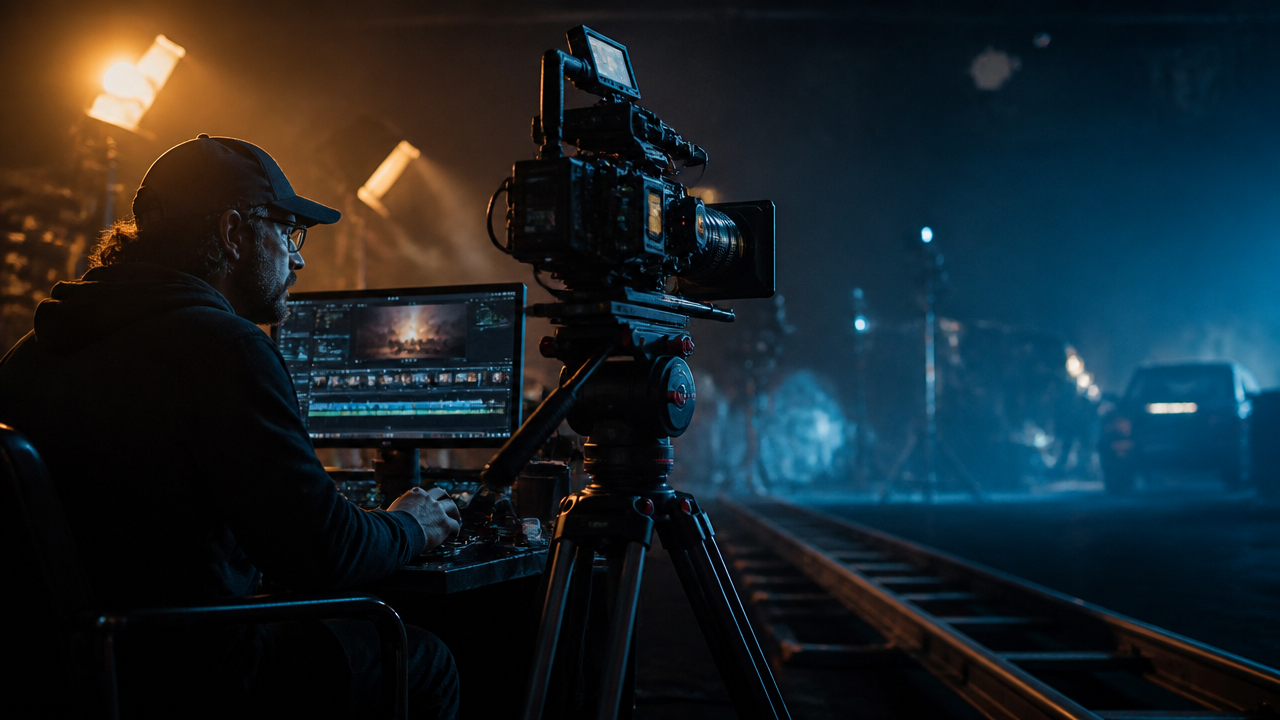
Veo 3.1 Prompt Playbook: Create Cinematic AI Videos with Audio, Camera Control, and Scene Edits
Table of Contents
- Why Veo 3.1-Style Models Change the Creative Brief
- The Anatomy of Strong Veo 3.1 Prompts
- Prompt Templates for Creator-Ready Clips
- Reference Images, First and Last Frames, and Scene Continuity
- Fixing Shots with Object Edits and Outpainting
- Troubleshooting Common AI Video Failures
- Where MagicEditAI Fits in the Video Workflow
- Conclusion
Google DeepMind’s current Veo page frames Veo 3.1 as its leading video model for filmmakers and storytellers, with native audio, camera controls, character consistency, first and last frame transitions, outpainting, and object edits. Google Cloud also introduced Veo 3.1 Lite on April 3, 2026 as a lower-cost option in the Veo family. For creators, this means an AI Video Generator is no longer just a text-to-video toy. It’s becoming a full production assistant for cinematic AI clips, ads, hooks, music visuals, tutorials, and polished social content. (deepmind.google)
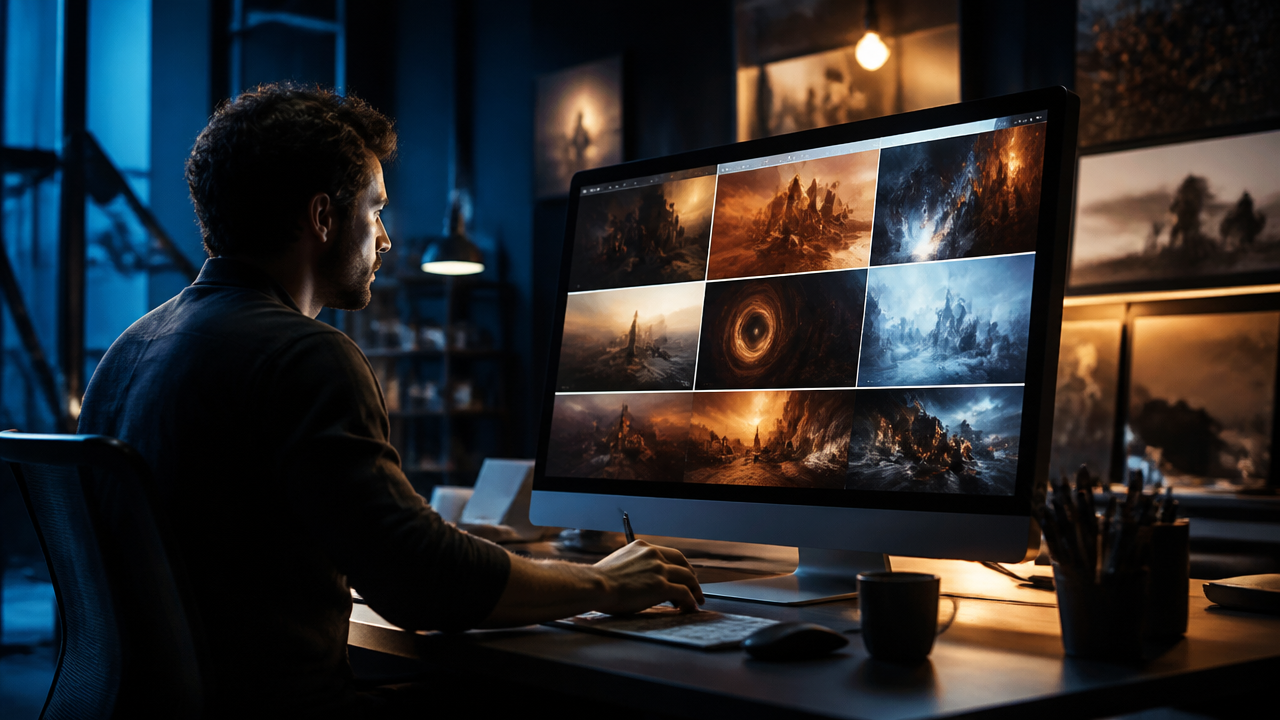
Why Veo 3.1-Style Models Change the Creative Brief
Newer video models make more of the production stack promptable. You can generate from text, animate a reference image, add synchronized dialogue or ambient sound, ask for realistic physics, guide camera movement, and export at production-friendly resolutions such as 1080p or 4K where supported. DeepMind’s Veo page specifically describes text-to-video, image-to-video, text-to-audio plus video, realistic physics, and professional-grade resolution as part of the model’s performance and creative feature set. (deepmind.google)
That changes how I write prompts. I don’t ask for “a cool product video” anymore. I write like a creative director handing a shot list to a camera operator, sound designer, editor, and colorist at the same time.
If you want a broader primer before building your shot system, I’d start with MagicEditAI’s guide to the AI Video Generator, then come back here and turn the ideas into repeatable prompt blocks.
The Anatomy of Strong Veo 3.1 Prompts
The best Veo 3.1 prompts are specific, but not cluttered. I like using a nine-part prompt frame:
| Prompt Part | What to Specify | Example |
|---|---|---|
| Subject | Who or what is on screen | “a matte black smart speaker” |
| Action | What changes during the shot | “rotates slowly as sound waves ripple through dust” |
| Setting | Where it happens | “minimal concrete studio” |
| Lighting | Quality, source, color | “soft side light, cool rim light” |
| Camera move | Motion and framing | “slow dolly-in from wide to close-up” |
| Lens language | Visual feel | “85mm lens, shallow depth of field” |
| Mood | Emotional direction | “premium, calm, futuristic” |
| Pacing | Speed and rhythm | “8 seconds, elegant, no fast cuts” |
| Audio direction | Native sound, music, dialogue | “low sub bass pulse, subtle room tone, no voiceover” |
Here’s the structure I use:
Prompt formula:
Create a [duration] [style] video of [subject] doing [action] in [setting]. Use [lighting], [camera move], [lens/framing], and [mood]. Motion should feel [pacing]. Audio: [dialogue, ambience, sound effects, music]. Keep [brand/product/character details] consistent.
This is where native audio video AI gets exciting. Instead of adding sound after the fact, you can describe the sonic world inside the prompt: footsteps on tile, café chatter, wind through trees, a crisp product click, or a short line of dialogue.
Prompt Templates for Creator-Ready Clips
Use these as starting points, then swap in your product, scene, and brand mood.
| Use Case | Prompt Template |
|---|---|
| Product teaser | “Create an 8-second cinematic product teaser of [product] on a reflective surface. The product turns slightly as condensation forms. Studio lighting, slow push-in, 50mm lens, premium mood. Audio: soft electronic pulse, subtle product click, no dialogue.” |
| Music visualizer | “Create a looping abstract visualizer for [music genre]. Liquid chrome shapes pulse to the beat in a dark studio. Smooth camera drift, macro lens, hypnotic pacing. Audio: match motion to a deep bass rhythm and airy synth texture.” |
| Tutorial intro | “Create a 6-second tutorial intro showing [tool/interface concept] as floating panels assemble around a creator’s desk. Bright practical lighting, clean camera slide left, upbeat pacing. Audio: soft whoosh transitions and friendly intro sting.” |
| Social ad | “Create a vertical 9:16 ad for [offer]. A creator opens a laptop, sees a polished video render, and smiles. Fast but clear pacing, handheld lifestyle feel, warm morning light. Audio: upbeat pop beat, keyboard taps, short voice line: ‘Done in minutes.’” |
| Cinematic B-roll | “Create a cinematic B-roll shot of [subject] moving through [environment]. Golden hour light, slow tracking shot, 35mm lens, natural motion blur, documentary mood. Audio: location ambience and subtle orchestral swell.” |
| YouTube hook | “Create a dramatic 5-second YouTube hook. [Main subject] enters frame as the camera snap-zooms to a surprising detail. High contrast lighting, energetic pacing. Audio: impact hit, riser, brief spoken line: ‘Here’s the part nobody shows you.’” |
For camera control prompts, avoid stacking five moves into one shot. Pick one primary motion: dolly-in, pan right, tilt up, orbit, crane down, handheld follow, or locked-off tripod.
Reference Images, First and Last Frames, and Scene Continuity
Reference images are the fastest way to keep a product, character, outfit, or art direction stable across multiple shots. DeepMind’s Veo page describes using reference images to help characters maintain their appearance across scenes, which is the core trick behind stronger continuity. (deepmind.google)
My workflow is simple:
- Generate or upload a clean hero image of the character or product.
- Describe fixed traits in every prompt: color, silhouette, materials, face shape, outfit, logo placement if allowed.
- Change only one or two variables per shot, such as setting and action.
- Reuse the same lighting family if the clips will sit in one sequence.
For first and last frame video, treat your two stills like storyboards. The prompt should describe how the model travels between them:
“Use the first image as the opening frame and the second image as the final frame. Create a smooth 8-second transition where the camera glides forward through mist, the lighting shifts from cool blue to warm gold, and the subject remains centered. Audio: soft wind, rising cinematic pad, no dialogue.”
That’s ideal for turning static campaign visuals into motion without breaking the design language.
Fixing Shots with Object Edits and Outpainting
Sometimes the shot is 90% right. Don’t regenerate the entire clip if you only need to fix one distraction.
DeepMind’s Veo page highlights adding objects, removing objects, and AI video outpainting, which can expand a frame to fit new aspect ratios while matching the surrounding scene. It also describes object insertion video behavior that considers scale, interactions, and shadows. (deepmind.google)
Try prompts like:
- Object insertion video: “Add a steaming ceramic coffee cup on the desk beside the laptop. Match the warm side lighting, realistic shadow direction, and shallow depth of field.”
- Object removal: “Remove the background tripod from the right side of the frame. Preserve wall texture, lighting, shadows, and camera motion.”
- Outpainting: “Expand this horizontal shot into a vertical 9:16 composition. Extend the studio background naturally above and below the subject, keeping the product centered.”
Troubleshooting Common AI Video Failures
| Problem | Likely Cause | Fast Fix |
|---|---|---|
| Drifting identity | Too few fixed visual anchors | Use a reference image and repeat stable traits in every prompt |
| Weak physics | Action is too magical or vague | Specify weight, gravity, contact points, and speed |
| Muddy motion | Too many actions at once | Reduce the shot to one subject and one main movement |
| Poor lip/audio sync | Dialogue is too long | Use one short line, clear speaker framing, and less background sound |
| Overcomplicated prompts | Conflicting style directions | Remove mixed genres, extra camera moves, and unnecessary adjectives |
The model card for Veo 3 notes that maintaining complete consistency in complex scenes or complex motion can still be challenging, so prompt discipline matters. Shorter shots, clearer subject descriptions, and modular edits usually win. (storage.googleapis.com)
Where MagicEditAI Fits in the Video Workflow
A strong prompt gets you the shot. A strong workflow gets you the final asset.
That’s where I’d place a MagicEditAI video workflow: generate the clip, refine the frame, edit or replace objects, add voiceover, create music, and export creator-ready versions from one streamlined workspace. For digital artists and content creators, the win is speed. You can test a product teaser, a YouTube intro, and three social ad variants without bouncing between a dozen tools.
If you’re building presenter-led or narrated content, MagicEditAI’s article on turning AI images into professional videos with prompts is a useful companion for thinking through images, voiceovers, avatars, and finishing polish.
Conclusion
Veo 3.1-style prompting works best when you stop writing prompts like captions and start writing them like mini production briefs. Define the subject, action, setting, lighting, camera, lens, mood, pacing, and audio. Use reference images for continuity. Use first and last frames for elegant transitions. And when a shot is close, fix it with object insertion, removal, or outpainting instead of starting over.
Try the free trial on MagicEditAI to create your first edited image or AI-generated video.

 MagicEdit