Voice Cloning as a Creative Director: Prompt Workflows for AI Videos, Images, Music, and Social Content
Table of Contents
- Why Voice Cloning Is Becoming the Control Layer for AI Media
- Prompting the Voice: Tone, Pacing, Pauses, and Performance
- Turning AI Voiceover Into Video Direction
- Pairing Voice With AI Image Editing and Branded Assets
- Matching AI Music Generation to the Voice Track
- A Practical MagicEditAI Workflow From Script to Social Cutdowns
- Consent, Rights, and Responsible Synthetic Media
- Conclusion
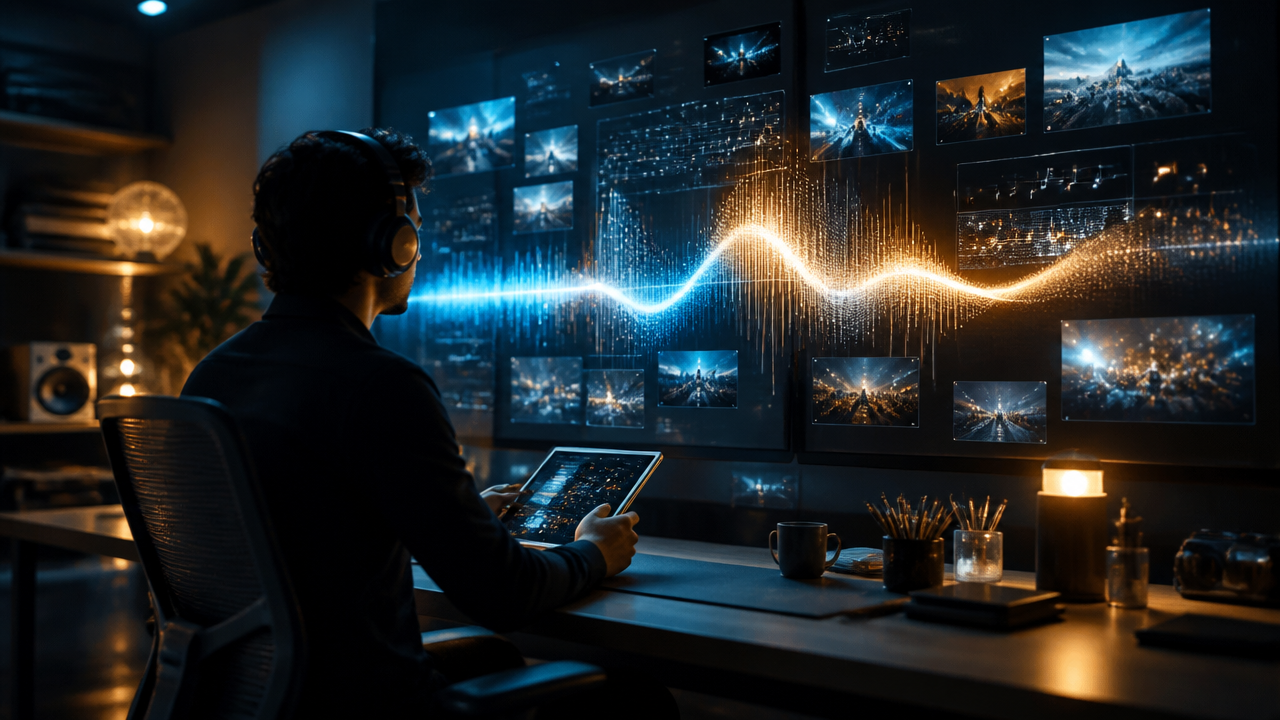
Recent updates across generative AI tools are changing how solo creators and small teams produce media. Voice cloning is no longer just a way to create narration. Used well, it becomes the creative control layer for AI media production, guiding video pacing, image edits, captions, music cues, thumbnails, and short-form variants from one performance-driven script.
That shift matters because multimodal AI is getting better at connecting voice, visuals, motion, and sound. OpenAI’s audio documentation, for example, describes text-to-speech models that can accept voice instructions, while Google has highlighted video generation with native audio in Veo 3. Adobe has also positioned Firefly as an all-in-one creative AI environment for image, video, audio, and design workflows. (platform.openai.com)
Why Voice Cloning Is Becoming the Control Layer for AI Media
The voice track is usually the most structured part of a video. It has words, timing, emotion, pauses, and emphasis. That makes it perfect for directing the rest of the production.
When I start with a cloned AI voiceover, I’m not just asking, “How should this sound?” I’m also deciding:
- Where the scene should cut.
- Which words deserve on-screen captions.
- When the background music should lift or pull back.
- What thumbnail emotion should match the video.
- How fast a reel, ad, tutorial, or product demo should move.
This is where generative AI tools become much more useful. Instead of generating random assets and stitching them together later, I use the voice prompt as the brief for the entire content creation workflow.
For a more focused breakdown of directing performance, I’d pair this workflow with MagicEditAI’s guide to prompting AI voiceovers that sound like a real performance.
Prompting the Voice: Tone, Pacing, Pauses, and Performance
A strong prompt gives the cloned voice creative direction. I like to write voice prompts the same way I’d direct a human narrator: clear, specific, and tied to the content format.
| Content type | Voice cloning prompt example | Best use |
|---|---|---|
| Tutorial | “Use a calm, confident teaching voice. Medium pace. Add a short pause after each step. Emphasize action verbs like ‘select,’ ‘drag,’ and ‘export.’” | Software walkthroughs, how-to videos |
| Product demo | “Sound polished and helpful, with light enthusiasm. Keep sentences crisp. Pause for half a second after each feature reveal.” | SaaS demos, app launches |
| Short ad | “Use an upbeat direct-response style. Fast pace, but keep pronunciation clean. Build energy toward the final call to action.” | Paid social, landing page videos |
| Reel or Short | “Start with curiosity, then move quickly. Use punchy delivery, natural pauses, and a warmer tone on the final line.” | TikTok, Instagram Reels, YouTube Shorts |
| Founder update | “Use a conversational, sincere tone. Slow down on the key announcement. Avoid sounding scripted.” | Brand updates, community posts |
A practical prompt might look like this:
Clone voice delivery direction:
Professional creator tone, warm but concise.
Pace: 145 words per minute.
Emotion: curious in the hook, confident in the middle, energetic in the CTA.
Pauses: 0.4 seconds after the opening question, 0.7 seconds before the final offer.
Pronunciation: say “MagicEditAI” as “Magic Edit A I.”
Delivery style: polished social video, not radio ad.
The newer wave of expressive speech tools makes this approach more practical because creators can direct delivery style, maintain cleaner speaker consistency, and generate faster iterations. That said, voice prompting still needs review. Listen for odd stress, rushed pauses, or pronunciation slips before using the audio to drive the next production step.
Turning AI Voiceover Into Video Direction
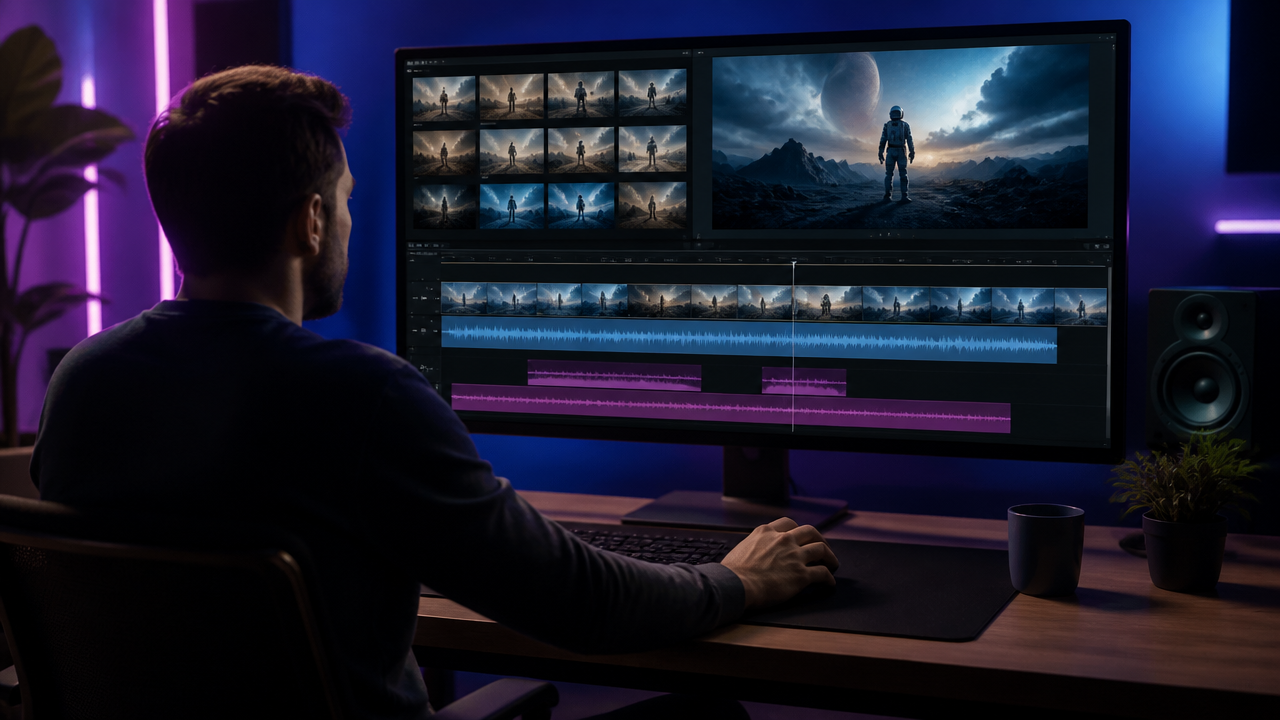
Once the AI voiceover is generated, I treat it like a timeline map. Every sentence becomes a scene cue.
Here’s a simple structure:
Voice line:
“Start with one product photo, then turn it into a polished launch video in minutes.”

Video prompt:
Create a 5-second product launch scene.
Open on a clean product hero shot.
Add a slow push-in camera move.
Cut to three quick detail shots on the words “polished launch video.”
Use bright studio lighting and a premium tech brand style.
This helps an AI Video Generator understand rhythm. The voice gives the video a reason to cut, zoom, reveal, or hold.
For captions, I usually pull out the strongest phrases:
- “one product photo”
- “polished launch video”
- “in minutes”
Those become animated caption beats, not full subtitles dumped onto the screen. It feels cleaner and keeps the viewer moving.
New video models are also improving consistency, scene control, and audio compatibility. Runway’s Gen-4 documentation, for instance, focuses on image and video creation workflows, while Google’s Veo 3 announcement emphasized native audio generation for sound effects, ambience, and dialogue. (help.runwayml.com)
Pairing Voice With AI Image Editing and Branded Assets
Voice also helps direct still visuals. If the narrator sounds premium, the visuals should not look chaotic. If the voice is playful, the thumbnails can be brighter and more expressive.
I use the script to create AI Image Editor prompts like these:
Thumbnail prompt:
Create a polished thumbnail image for a short-form AI product demo.
Subject: creator holding a smartphone with a glowing editing interface.
Style: clean studio photography, high contrast, modern creator brand.
Emotion: confident and curious.
Composition: subject on the left, open negative space on the right.
No text or letters in the image.
Scene background prompt:
Generate a minimal creative studio background for a tutorial video.
Soft gradient lighting, modern desk setup, camera gear, neutral colors.
Keep the center area clean for product screen overlays.
Product visual prompt:
Edit the uploaded product image into a premium launch asset.
Improve lighting, remove clutter, add a subtle reflection, keep product shape accurate.
Use a clean background that matches a professional SaaS brand.
This is especially useful for branded social assets. The same cloned voice script can guide thumbnails, carousel covers, story backgrounds, and ad variations, so the campaign feels consistent without manually rebuilding every asset.
Matching AI Music Generation to the Voice Track
AI Music Generation works best when it supports the voice instead of competing with it. I usually prompt music after the voice is approved, not before.
| Voice tone | Music prompt | Editing note |
|---|---|---|
| Calm tutorial | “Minimal electronic bed, 90 BPM, soft keys, no lead melody, low energy.” | Keep volume low under narration |
| Energetic ad | “Bright pop beat, 120 BPM, quick intro hit, light percussion, optimistic build.” | Add lift before CTA |
| Premium product demo | “Modern ambient tech track, 100 BPM, subtle pulse, polished and restrained.” | Duck music during feature lines |
| Emotional founder video | “Warm cinematic pad, slow tempo, gentle piano accents, hopeful mood.” | Let pauses breathe |
For scene changes, I like to mark beats directly in the script:
[0:00] Hook, music starts with soft impact.
[0:04] First feature, add light percussion.
[0:11] Proof point, reduce music under voice.
[0:18] CTA, bring beat back with brighter energy.
That turns the voice track into a music brief. The result feels edited, not randomly layered.
A Practical MagicEditAI Workflow From Script to Social Cutdowns
Inside a tool like MagicEditAI, I’d run this as one connected AI media production workflow:
-
Write the script Start with a 30-second product demo script. Mark pauses, pronunciation, and emotional beats.
-
Generate the cloned voice Create the AI voiceover with tone and pacing instructions. Review it like a director, not just a user.
-
Create the video Use the voice timing to prompt scenes in the AI Video Generator: hook shot, product close-up, feature sequence, proof moment, CTA.
-
Add captions and transitions Turn key phrases into captions. Match transitions to pauses rather than cutting every second.
-
Generate music Prompt background music around the voice tone, tempo, and CTA lift.
-
Edit thumbnails and social assets Use the AI Image Editor to create a thumbnail, vertical cover, and product hero image.
-
Export variants Create a 30-second version, a 15-second ad, and a 6-second teaser using the same voice identity and visual style.
This is where an all-in-one workspace helps. Instead of jumping between five disconnected apps, creators can move from voice to video to music to image edits in one production flow. If you want a broader view of the modern stack, MagicEditAI’s guide to AI video, voice cloning, and AI music generation is a useful next read.
Compared with single-purpose avatar makers, standalone music generators, or image-only editors, the advantage is control. The cloned voice becomes the thread that keeps every asset aligned.
Consent, Rights, and Responsible Synthetic Media
Voice cloning needs clear boundaries. I recommend treating a voice like a creative asset with ownership, consent, and usage rules.
Use this checklist before publishing:
- Get written consent before cloning anyone’s voice.
- Define where the voice can be used, such as ads, tutorials, internal videos, or social posts.
- Avoid cloning public figures, employees, customers, or creators without permission.
- Disclose synthetic voice use when the context could mislead viewers.
- Don’t use cloned voices for impersonation, fake endorsements, scams, or sensitive claims.
- Keep reference recordings secure and delete files you no longer need.
Transparency is becoming part of the wider AI media conversation. Adobe, for example, says Firefly applies Content Credentials when projects with generated assets are downloaded or exported, which reflects a broader push toward clearer provenance in synthetic media. (helpx.adobe.com)
Conclusion
Voice cloning is quickly becoming more than a narration shortcut. For creators, it can act like a creative director that sets the rhythm for video, the mood for images, the shape of captions, and the emotional arc of music.
The smartest workflow starts with performance. Direct the voice first, then let that voice guide the AI Video Generator, AI Image Editor, AI Music Generation prompts, and short-form cutdowns. That’s how solo creators and small teams can get pro-quality multimedia content without building a full studio pipeline.
Ready to put this workflow into motion? Try the free trial on MagicEditAI to create your first edited image or AI-generated video.

 MagicEdit